How can you play Valorant with a controller using reWASD?
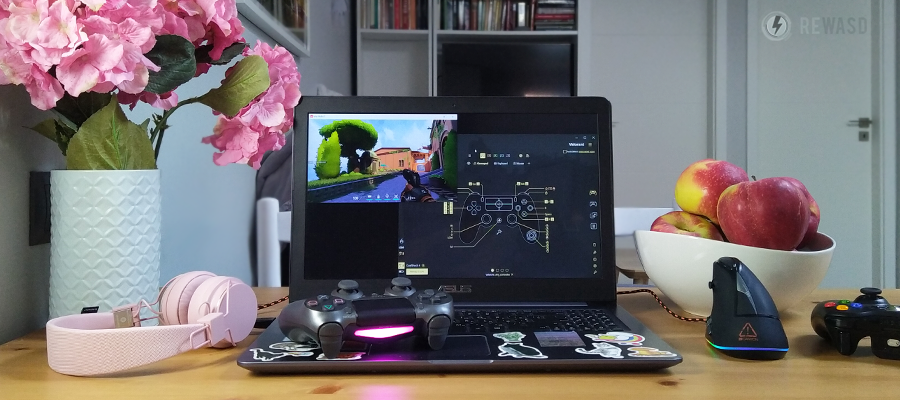
It’s been a few years since Valorant came out, and it’s not a secret that there are lots of fans of this game nowadays. More and more people start their journey in this game each day, and we would like to answer some questions they may have when wondering: can you play Valorant with a controller? (spoiler, yes). We will cover frequently-asked questions in this blog post, hope we won’t forget anything. And if we do, you know where to find us ;)
- Does Valorant have controller support?
- Can I play Valorant with a controller?
- Do I need to get a certain device to run Valorant with controller?
- Can I get aim assist on Valorant?
- Can I use a premade config to play Valorant with controller?
- I want to make my own config, how do I do that? (detailed guide)
- My right stick feels weird
- My gamepad has a gyroscope, can I use it to play Valorant with controller?
- I need a different sensitivity for aiming
- I want to try Flick Stick in Valorant
- I don’t want to miss out on amazing reWASD features, any recommendations?
- Which license should I buy to play Valorant with controller?
- Troubleshoot: I can’t move my mouse / use right stick to look around
- Are there any video tutorials about how can you use controller on valorant?
Does Valorant have controller support?
Nope. As for January 2024, Valorant does not support controllers natively.
Can I play Valorant with a controller?
Yup, after doing some remapping, this is possible.
Do I need to get a certain device to run Valorant with controller?
You’d need a gamepad that is supported by reWASD. Some gamepads that are not on our officially-supported list can be detected by the software, but we can’t promise anything. You can run the free trial to see if your gamepad is detected by our program.
Can I get aim assist on Valorant?
Nope. Aim assist is used in games for controller input to improve the aim, since aiming with the stick is harder than aiming with the mouse. Since it’s impossible to use controller on Valorant natively, there is no aim assist.
Can I use a premade config to play Valorant with controller?
Of course, here are some useful links: the config our team has created, a page with all the Valorant configs shared by our users.
I want to make my own config, how do I do that? (detailed guide)
Let’s start by acquainting ourselves with the principle of how reWASD works: you have a physical controller, and you will add virtual keyboard and mouse mappings to it. That’s the tea, except you have a lot of options you can use to play Valorant with controller in addition to that ;) But we’ll get to them later, I would suggest screenshotting the controls in Valorant, if you are not familiar with all of them, and take a peek at the image to make sure you don’t miss anything!
Let’s start with the basics:
1. Download and install reWASD. Mind that reWASD is a driver-based software, so you’ll need to restart your PC after the installation is complete.
2. Once the installation and reboot are completed, open reWASD and connect your controller to PC using a preferable method. When connected, your gamepad should appear in the lower-left corner. Choose it to start creating the config:
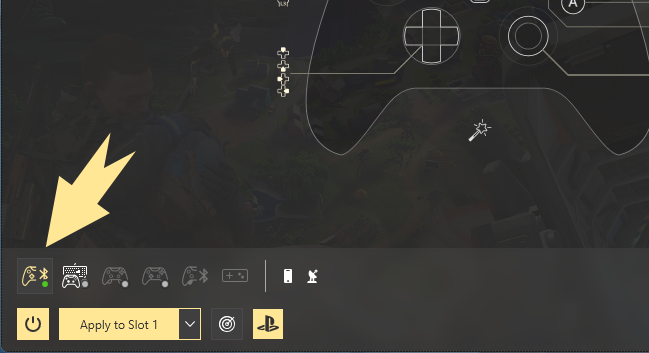
After installation, you will have the Valorant config created by our team in reWASD already. But since this part of the guide is about making a config from scratch, let’s do just that!
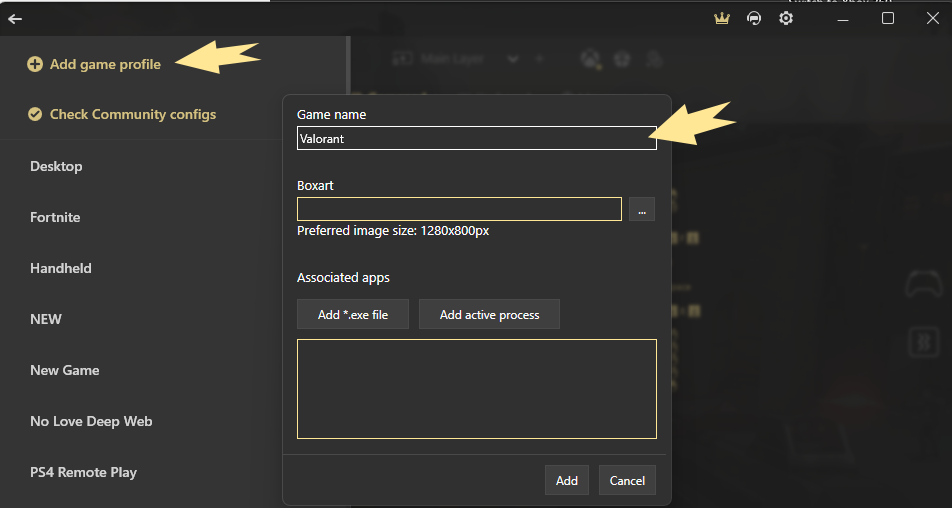
3. Click on the burger menu in the upper-left corner, and choose Valorant profile, or create one by pressing Add:
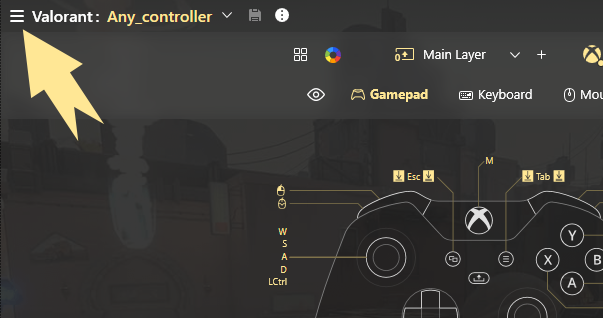
4. Set the name of the profile, add a background picture is you wish, and click Add:
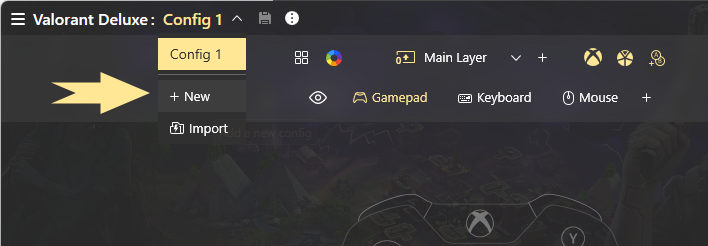
5. The empty config is created automatically after you add a new Profile. If you have chosen an existing profile, click the + sign to add a new config:
6. Now let’s add some mappings: start by adding WASD to Left stick, and Mouse to the right. Make sure to check the tips for tuning Mouse remapped to a physical stick.
Another tip for WASD mapping: reWASD allows adding mappings to Stick zones, so when your stick is deflected enough to reach a certain zone, reWASD will fire a mapping along with the Stick mapping. Regarding Valorant specifically, running is the default mode for the character, and you need to press and hold Shift to walk. Let’s use this for our benefit!
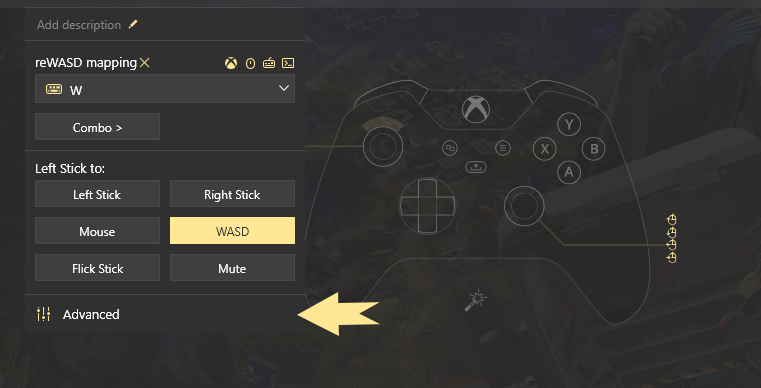
7. Open Left stick Advanced settings:
8. Now check out the right part of this window. Choose one zone to be the ‘walk zone’ and adjust it’s size. I’ll adjust Low zone, the green one:
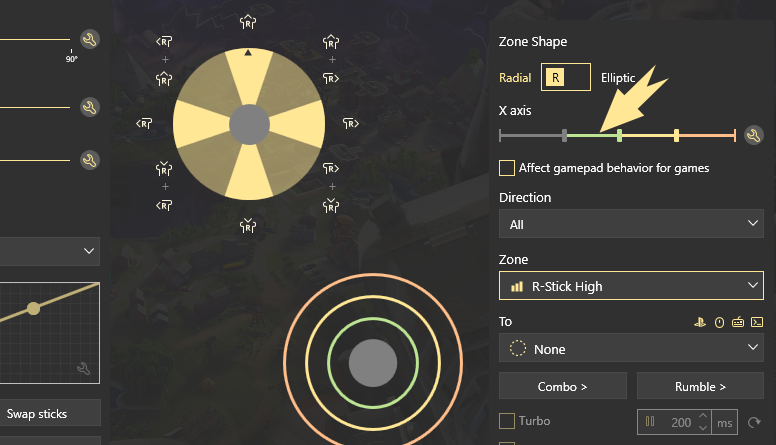
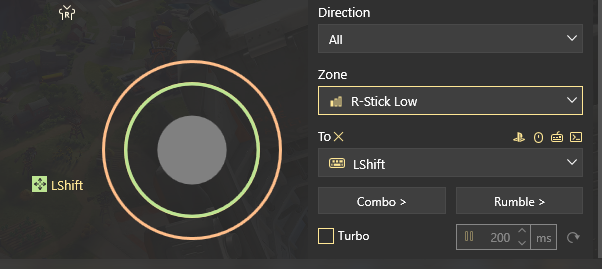
9. Now assign Shift key to Low Zone for All directions:
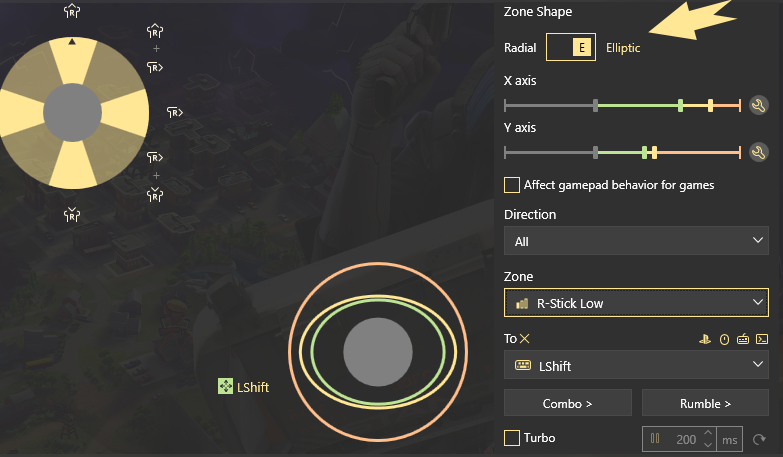
10. reWASD allows to use Elliptic zones for keyboard mappings too, so if you would rather use an elliptic zone, you can give it a try. This may be beneficial to have more left and right stick deflection that will let you walk instead of run:
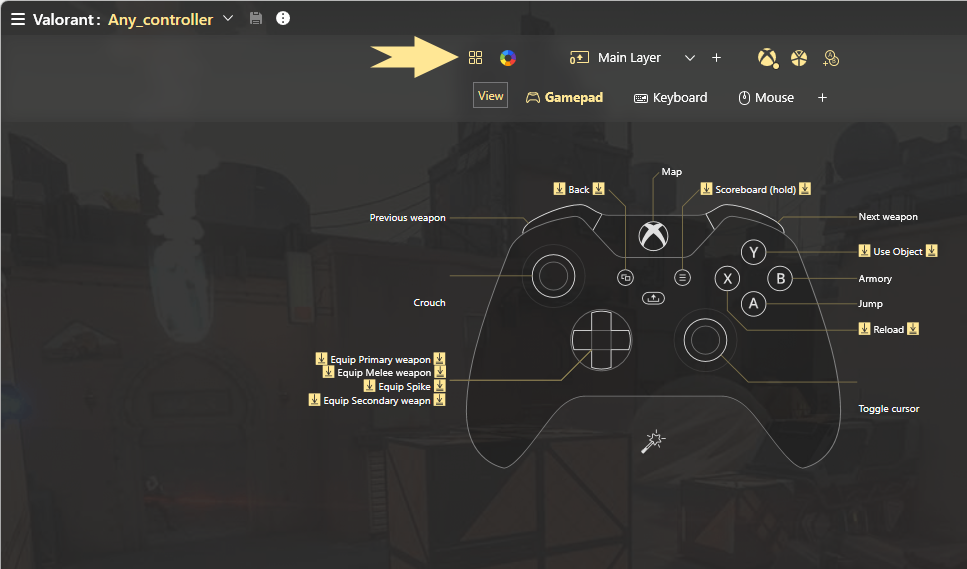
11. Now what’s left is to add other important mappings before you use controller on Valorant. You can add Descriptions to mappings as well, press the Labels icon to show all the descriptions:
My right stick feels weird
We can suggest some options that can help you tweak the stick behavior!
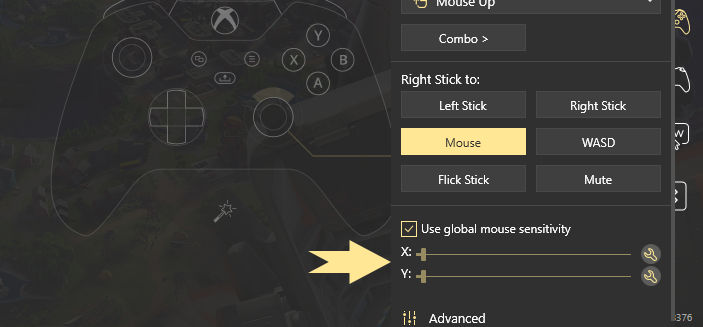
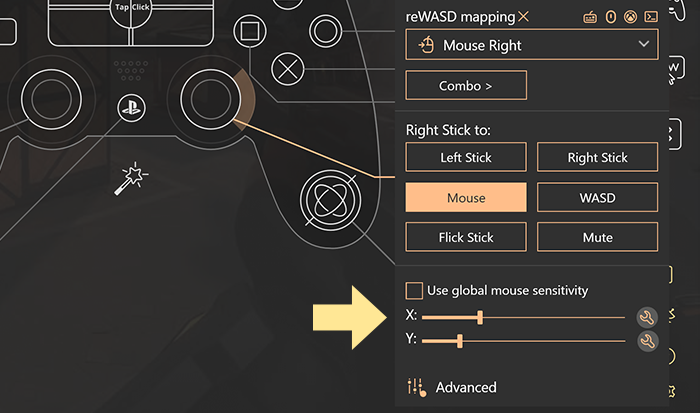
- First things first: check out the Mouse sensitivity setting. You can set a Global mouse sensitivity in Virtual input device settings, or adjust the sensitivity for each stick remapped to mouse separately. To do that, remap stick to Mouse, and unclick Use global mouse sensitivity, then adjust the sensitivity for X and Y axes:
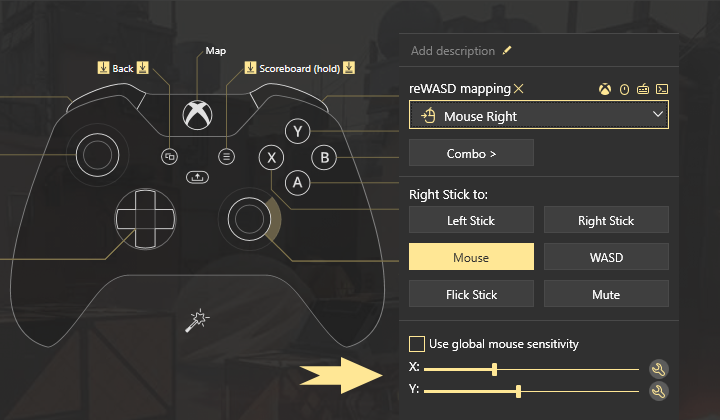
Please note, that when changing Virtual input device settings, only Mouse Sensitivity will affect Mouse mappings on your physical stick! Other settings affect Mouse mappings added to Digital buttons only.
Let’s dig deeper in Advanced stick settings:
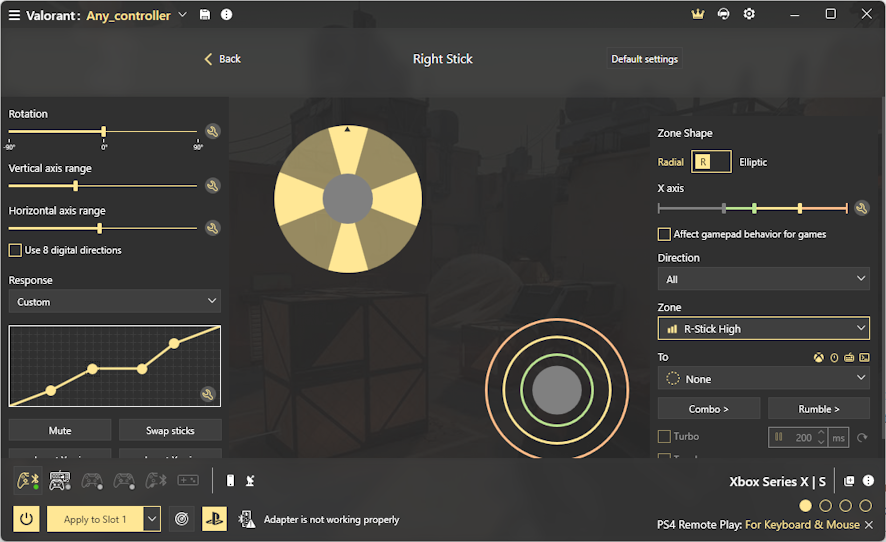
- Check out Rotation in Advanced stick settings: maybe it will be comfortable to turn the stick to a certain angle?
- Pay attention to Vertical and Horizontal axis range when remapping a stick to mouse: those parameters define the range where mouse up, down, left and right fire separately, and where they ‘combine’ with adjacent mappings. To make the stick work more analog-like, we suggest minimizing these values.
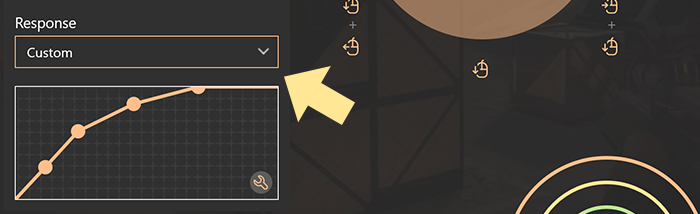
- Response curve can change a LOT for your controller on Valorant: on this graph, X-axis is the position of your physical stick, and Y-axis is the cursor speed. This parameter is applied on top of all other settings like sensitivity. You can choose one of the pre-defined graphs, or create a Custom curve: we suggest testing different variants and finding the one that suits you most!
- The last thing we suggest to look into is Deadzone: this is useful to change the position of the stick where nothing happens. If your stick is too rickety, increase the deadzone to avoid accidental drift. If you need to push the stick too hard to get some input, lessen the deadzone instead.
The colored stick zones do not affect its behavior, unless you add mappings to those zones.
My gamepad has a gyroscope, can I use it to play Valorant with controller?
How can you play Valorant with a controller that has a gyroscope, and not use it if you want to? That would be a shame, let’s learn how you can do it. Once you added all the needed mappings to your controller, let’s proceed to gyro mappings. reWASD offers two gyroscope mosed, Gyro and Tilt, and we strongly suggest checking the manual to learn more about them. You’d also need Commands to manage gyro, don’t miss out on them!
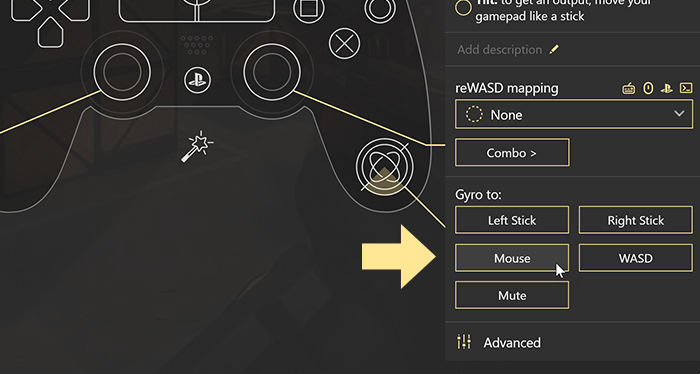
1. Choose the gyroscope icon, and select Mouse option:
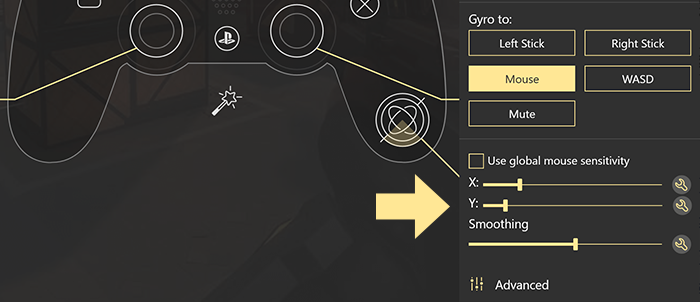
2. Now you can set Sensitivity for the mouse, and change Smoothing (available for PlayStation and Steam controllers)
3. To get more in-depth, open Advanced settings. Here you can change the Response curve to one of the presets, or create a Custom curve:
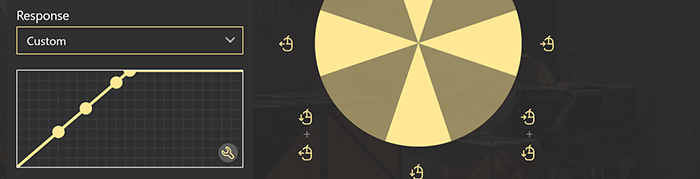
4. And to change gyro deadzone, pay attention to the right part of the window. You’d need to change the grey zone:
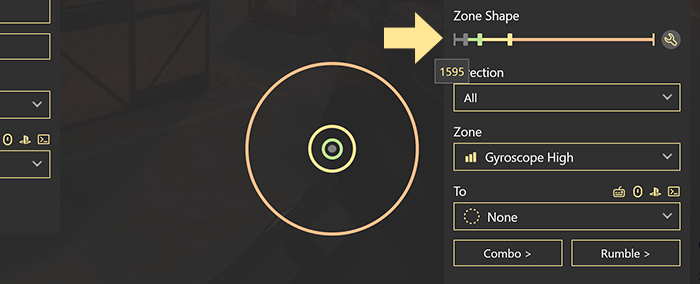
The colored zones on gyro do not affect its behavior, unless you add mappings to those zones.
All done! Try using a gyro with your controller on Valorant ;)
I need a different sensitivity for aiming
Before you rush to play Valorant with controller you should know that his is possible to do with reWASD as well. Follow these steps:
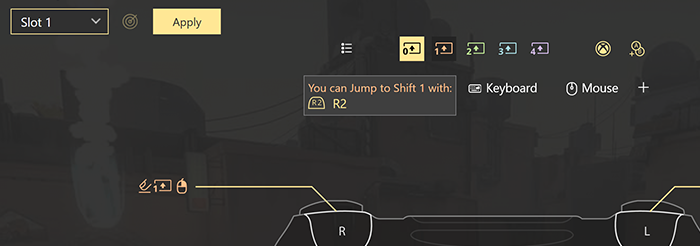
1. Set the aiming control as a Jump to Shift key: choose that control, usually it’s one of the triggers, and open Shift mode menu:
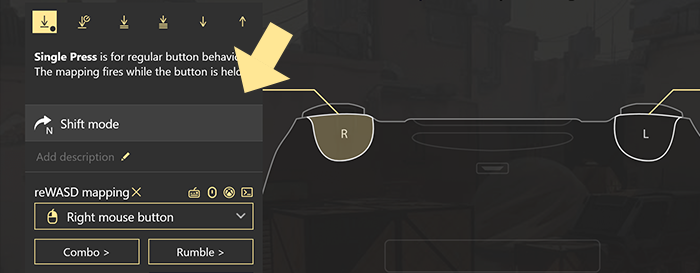
2. Now choose a Shift layer to jump to: pick any layer that is free. Let’s roll with Shift 1:
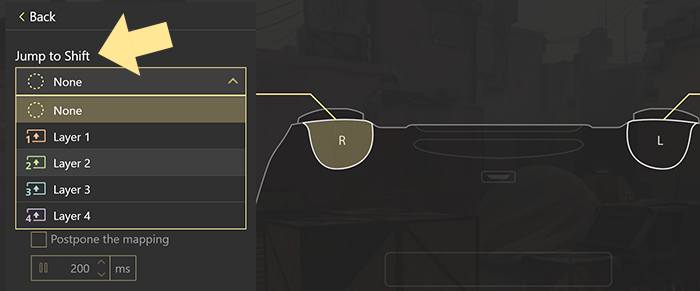
If in Valorant you have Toggle aiming enabled, change it to press and hold. If you want to roll with Toggle aim, you’d need to change the Jump to Shift key mode to Toggle.
3. Proceed to the chosen Shift layer: choose it from the row of colorful icons on the top of reWASD window:
4. Set the Stick mappings to Mouse, and adjust the sensitivity for this stick:
5. If you prefer to tune the finest details for mouse on your stick, you can open Advanced stick settings, and tune the response curve for this stick:
Done! Now you have a Shift layer that will be active while you’re aiming, and have different sensitivity for the virtual mouse :) If you are not a fan of our Overlay Shift change notifications, learn about how you can customize them.
I want to try Flick Stick in Valorant
Flick Stick is a feature in reWASD that allows you to use the stick as a 360-degree field of view of your character, which is quite useful when you use controller on Valorant. We have a thorough how-to blog post about this feature, we suggest taking a look at it. Long story short, you need to find the X Sensitivity value that will make a full circle on your physical stick also a full circle for your character's field of view in-game.
One nuance though: reWASD’s Flick Stick works well with Raw Mouse input only, which Valorant does not seem to have. You still can try to configure this feature, but it can be less precise in comparison with the games that do have the Raw Mouse input option. Using it together with Gyro remapped to mouse is a way to go as well, this is how Flick Stick was initially intended to be used.
Which license should I buy to play Valorant with controller?
If you wish to simply remap your controller to mouse and keyboard, without any additional features, Basic license would be enough. Make sure to check out what features reWASD has to offer!
I don’t want to miss on amazing reWASD features, any recommendations?
Even though a Basic license is enough to play Valorant with controller, reWASD offers lots of things in the Basic license that can improve your gameplay significantly. Here are some of them I can suggest:
- Activators — assign mappings to Double, Triple, Long press of a key. Also possible to set Start and Release press activators!
- Shortcuts — set a mapping to a 2, 3 or 4 button press
- Autodetect — assign the .exe file to your config, so when the game window is in focus, your config applied automatically
- Shift mode — the one we already described in a use case about different mouse sensitivity for aiming — permits you creating a whole new layer of mappings that is activated by a press-and-hold of a key
- If you use DualSense controller, make sure to check out the Adaptive triggers presets
- Group your controller with mouse, or keyboard, to use them together in-game
- Radial Menu feature elevates your gaming experience by offering swift access to frequently used commands
Troubleshoot: I can’t move my mouse / use right stick to look around
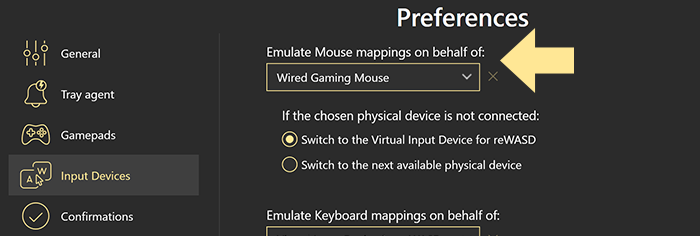
When you use Valorant with controller remapped in reWASD, it’s important to know that the game works with only one keyboard and mouse input. In order for the game to see the input from the remapped stick, the mappings should be emulated on behalf of your physical devices. Right now, this behavior only affects the mouse, but you can choose both to be sure that everything works perfectly with this or upcoming game’s versions.
So, to resolve the issue you need the following steps:
1. Go to Preferences — Input Devices tab
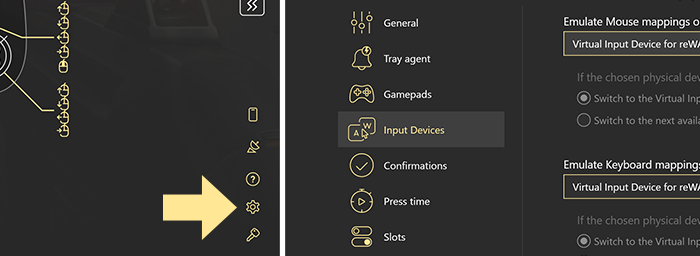
2. Choose the physical devices you are currently playing with in the drop-down lists and click Apply:
3. Now, Apply your Valorant config (or choose one of those we have in our Community)
You can also check Do not create Virtual Input Device for reWASD after you have chosen the physical devices. This will help avoid the issues when you play Valorant with controller remapped to mouse and keyboard.
Are there any video tutorials about how can you use controller on valorant?
Of course! Lots of gamers have made useful videos about setting up controller on Valorant, and here are some of them:
- English channels:
- French channels:
- Spanish channel:
We hope this post explains how can you play Valorant with a controller. If not, reach out to us wherever you feel comfortable: Discord text chat, on Facebook, or on reWASD Forum. Make sure to follow us on Pinterest, Reddit, and YouTube to keep your hand on the pulse.
You may also like
.png)
Summer Is Fading… But We’re Just Getting Started