How to remap gyro and set up gyro aiming
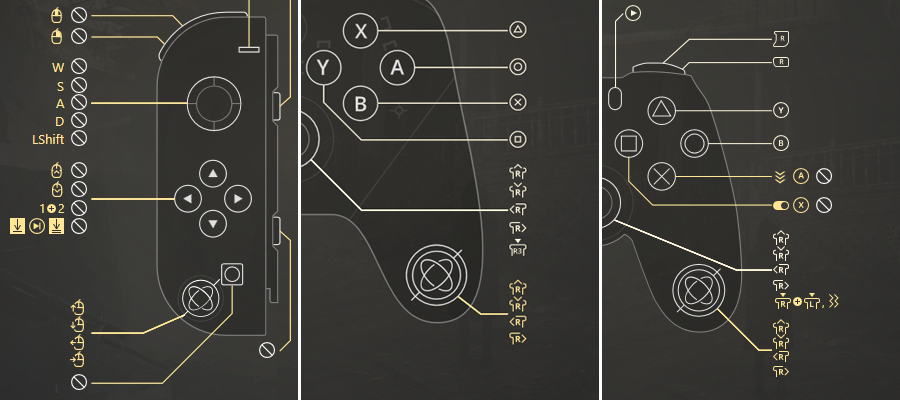
After reWASD 5.3 came out, we have added Gyro support for all the controllers that have a gyroscope, and that will be Nintendo Switch Pro, Nintendo Joy-Cons, and DualShock 4. We would like to describe how to set up gyro aiming, or simply use gyro controller in a full swing!
First of all, if you want to use gyro, you will need to learn more about the way it works. We have added a detailed description with gifs that show the movement of a controller, and a full explanation of all the existing settings to our Help manual. Feel free to check it out in case you have questions after you finish reading this post.
You can remap gyro directions to basically anything: assign any mapping that is available in reWASD mapping list and in the combo editor. But the most popular mapping for the gyroscope is definitely a stick or mouse moves. This will work as gyro aiming once the config is applied.
Follow these steps to enable gyroscope aiming:
- Download and install reWASD, and open the program once it’s ready
- Plug in your controller to PC, or connect it via Bluetooth, and pick the needed gamepad in the lower-left corner
- Create a new profile, or choose the existing one in the top-right corner of reWASD
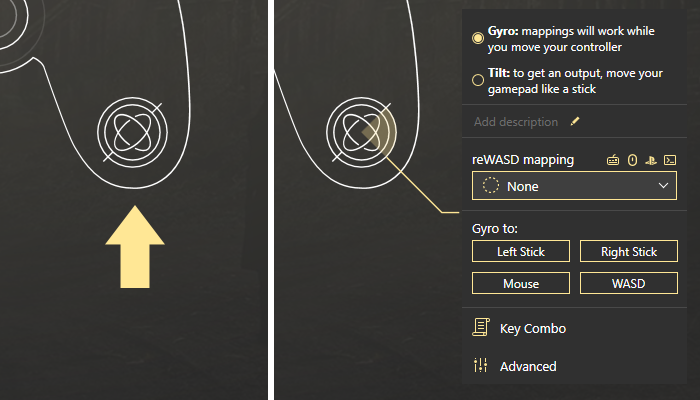
- Now you will see the image of a controller. The gyro icon is displayed on the right side of the gamepad. Click that icon to remap DS4, Joy-Cons, or Switch Pro controller gyro:
A little bit of theory
Using gyro is about the way you rotate the controller. The gyroscope has three axes: yaw, pitch, and roll. Their naming is acquired from the airplane axes, and so is the principle of rotation. Here are a couple of gifs that will demonstrate it. The first one shows the rotation while the controller is placed horizontally, the second one shows the moves while it’s held vertically:
Roll
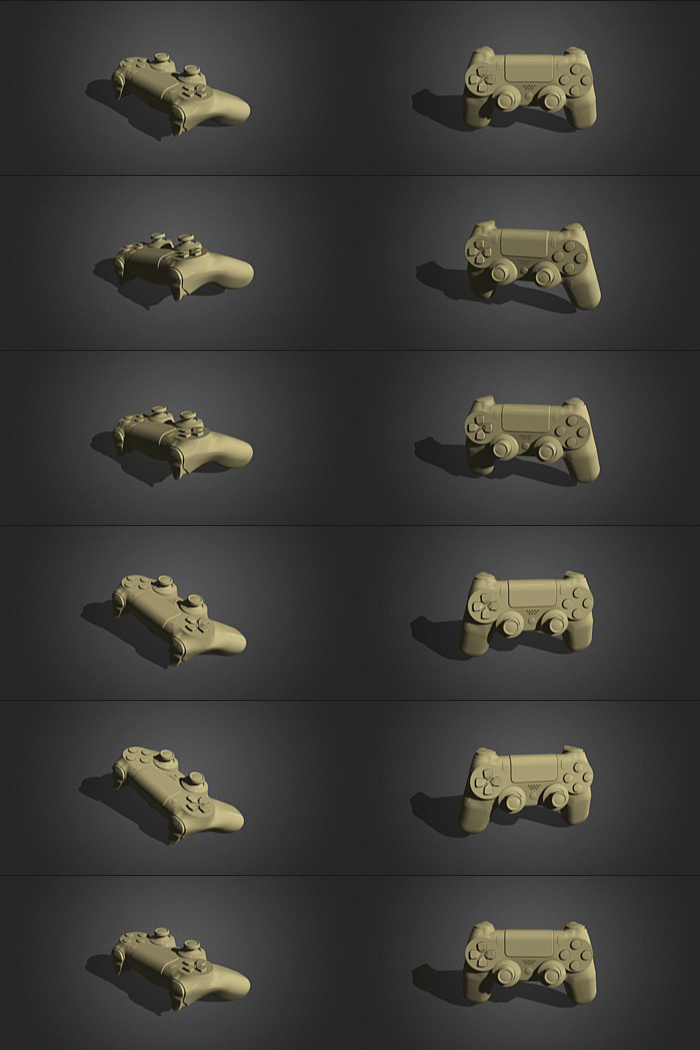
Yaw
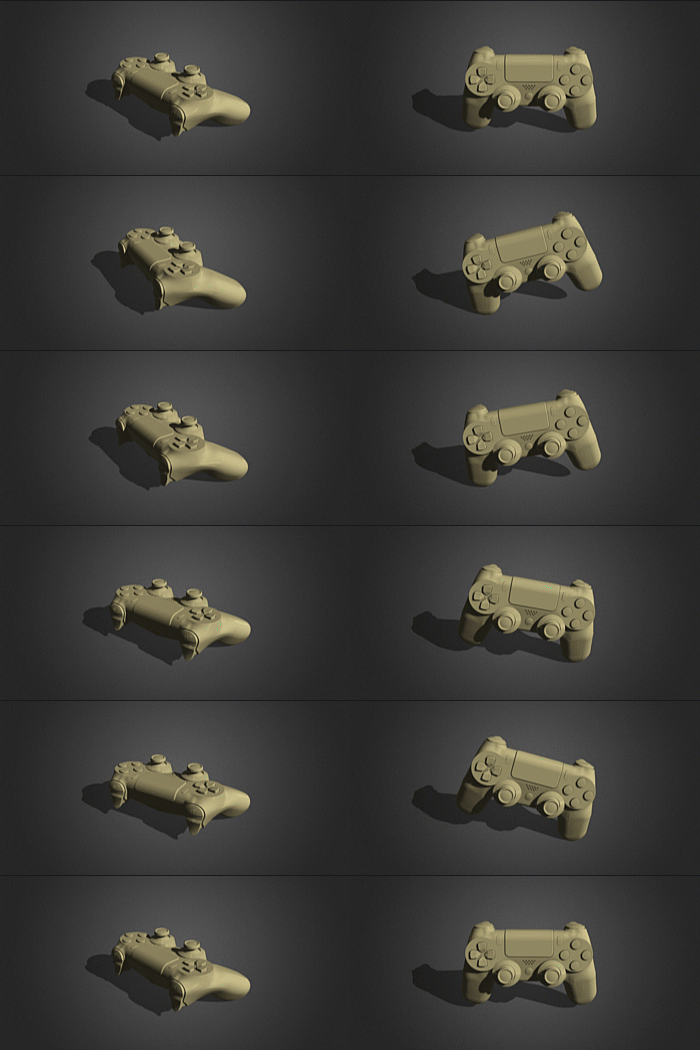
Pitch
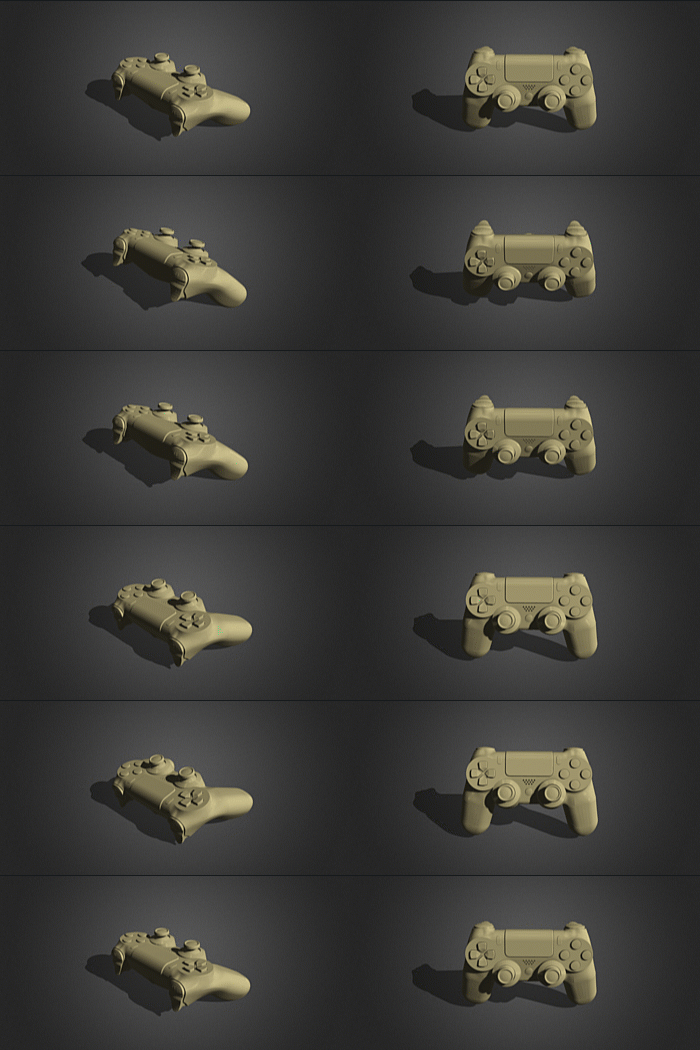
Keep these movements in mind, you will need this knowledge later ;)
reWASD also offers you some commands that will help you manage the gyro on your controller: Switch gyro steering axis, Reset Tilt, Toggle Gyro On/Off. Don’t forget to add the commands, they will help you manage gyro aiming.
reWASD offers you two modes to use gyro: Gyro and Tilt. What to do next will depend on your personal preferences, so we suggest to try both of these modes and pick your favorite one!
Gyro mode: when you stop moving the controller, the mappings stop reproducing. It is better for camera movement, or for gyro aiming. It also depends on the game type, and the settings you configure next. By default in reWASD, in this mode, yaw axis stands for Lean mappings, while the roll is used to look around. However, you can swap the axes using the correspondent command — Switch gyro steering axis, or pick the default steering axis (whether Yaw or Roll) in Preferences — General.
Learn more about Advanced Gyro mode settings from our manual
Tilt mode: the easiest way to explain this mode is to say that your gamepad acts as a huge stick. To achieve the max output, you will need to turn the controller to a certain angle. To stop the mappings from reproducing, you need to return the controller to its steady state (deadzone). This mode shows good results in racing games. In Tilt mode, the roll axis is used as a steering axis when the gamepad’s “nose” looks forward, and yaw is used as a steering axis when the gamepad’s ”nose” looks up.
Feel free to learn more about Advanced Tilt mode settings from our manual
- Now, once you know what exactly you would like to remap, you can add the mappings to gyro. For example, if you want to use gyro aiming, you need to assign whether right stick to gyro (if you play with controller settings) or mouse to gyro (if you play with keyboard layout on a physical controller)
In case some things are unclear, you can watch the how-to video about setting up the gyro:
We hope that this article helped you set up gyro aiming and make it work the way you need. If you have any questions, don’t hesitate to ask us below this post in the comment section. Reach out to us wherever you feel comfortable: Discord text chat, on Facebook, or on reWASD Forum. Make sure to follow us on Pinterest, Reddit, and YouTube to keep your hand on the pulse.
You may also like
How to Use Gyro Controls on PC
.png)