How to Use Gyro Controls on PC
If you've ever switched from a mouse to a gamepad mid-session, you know the feeling - your aim gets sluggish, micro-adjustments feel impossible, and tracking moving targets turns into a guessing game. The good news: gyro controls on PC are changing that equation for controller players.
Gyro aiming works through the motion sensor built into your controller. Tilt the gamepad slightly and the crosshair moves with it - smoothly, directly, with a responsiveness that analog sticks simply can't match at fine angles. Think of it as adding a layer of mouse-like precision on top of your existing stick controls.
This guide is for PC players using a DualShock 4, DualSense, or Switch Pro Controller on Windows who want to get real accuracy out of their setup. We'll cover how gyro works under the hood, which controllers support it, how to configure it via Steam Input or reWASD, and how to tune it so it actually feels good to use.
What Are Gyro Controls - and How Do They Work?
Controllers like the DualSense and Switch Pro aren't just buttons and sticks. Both contain a 6-axis IMU - an inertial measurement unit that combines a gyroscope and an accelerometer. The accelerometer detects linear movement (up, down, forward, back), while the gyroscope tracks rotational velocity: how fast you're turning the controller and in which direction.
When gyro aiming is active on PC, that rotational data feeds directly into camera or crosshair movement. Tilt the controller slightly right - the crosshair moves right. Lift the front edge up - the aim rises. The response is proportional and immediate, which is exactly what sticks struggle to deliver at small input angles.
Here's the practical split most gyro players use: the right stick handles broad sweeps - snapping to a target's general direction - while gyro handles the final correction. That combination addresses the "acceleration plateau" that makes pure stick aiming feel imprecise: sticks are optimized for large movements, gyro fills the gap for everything smaller.
For a deep technical breakdown of gyro implementation across different games and platforms, GyroWiki by Jibb Smart is the most thorough community reference available - written by the developer who added gyro support to several major PC titles.
Which Controllers Support Gyro on PC?
Gyro support depends on whether the controller physically contains a motion sensor - and on the PC side, whether software is reading that sensor and translating it into something the game understands.
|
Controller |
Gyro Hardware |
Works on PC |
|
DualShock 4 (PS4) |
✅ |
✅ via USB or Bluetooth |
|
DualSense (PS5) |
✅ |
✅ via USB or Bluetooth |
|
Switch Pro Controller |
✅ |
✅ requires software |
|
Xbox One / Series X|S |
❌ |
❌ no gyro chip |
|
Xbox Elite Series 1/2 |
❌ |
❌ no gyro chip |
If you're on an Xbox controller, gyro aiming isn't an option - there's no sensor to read, regardless of software. For everyone else, the hardware is there, but here's the catch: Windows does not expose gyro data to games natively. Even with a DualSense plugged in via USB, no PC game will see motion input unless dedicated software sits between the controller and the game, reading and translating that data in real time.
That's where your two main options come in. Steam Input handles gyro within Valve's ecosystem and covers most Steam library titles. reWASD operates at the system driver level, making gyro available in every game and launcher regardless of where it came from.
Method 1 - Steam Input Configuration
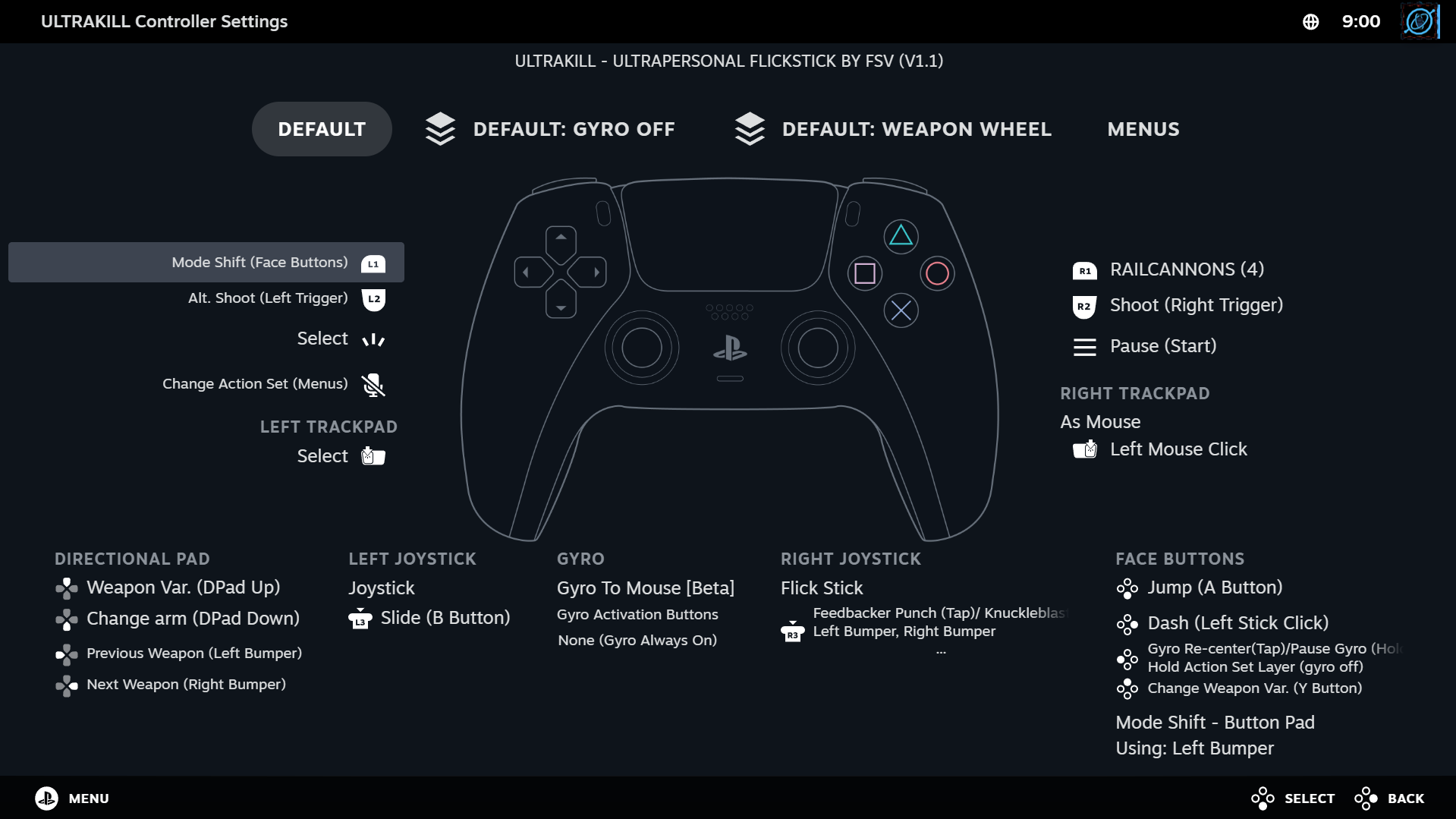
Steam Input is Valve’s built-in controller system with native support for DualShock 4, DualSense, and Switch Pro controllers. It allows gyro aiming, input remapping, and mouse/joystick emulation without extra drivers.
Basic Steam Input configuration:
-
Enable Steam Input in Steam → Settings → Controller
-
Open Controller Configuration in-game
-
Set Gyroscope to As Mouse or As Joystick
-
Adjust sensitivity and optional ADS/L2 gyro activation
Steam Input only works within Steam, and some games may require it to be enabled manually per title.
More info: Steam Input Documentation
Method 2 - How to Set Up Gyro Controls with reWASD
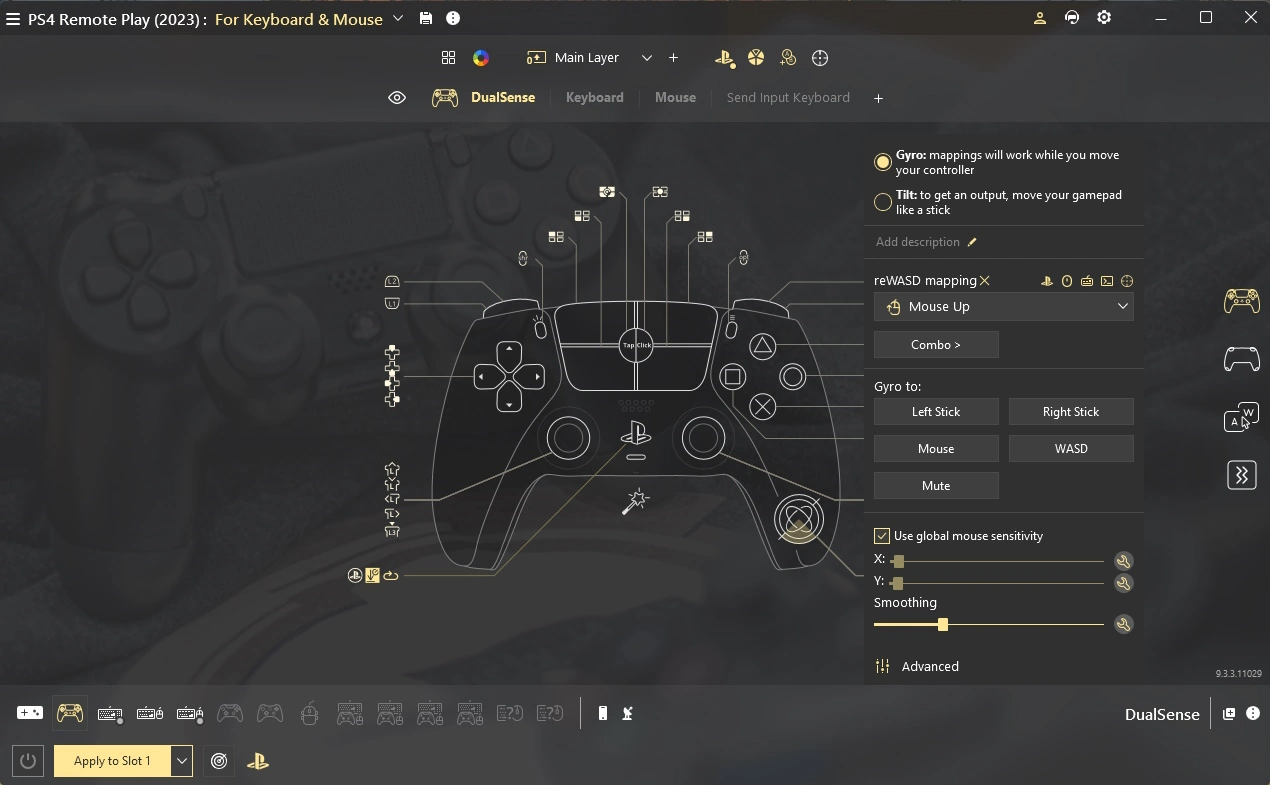
reWASD is a controller remapping tool for Windows 10/11 (64-bit), developed by the team behind DAEMON Tools. Where Steam Input stops at the edge of its ecosystem, reWASD operates at the system driver level - gyro output works in any game, any launcher, any application, with no exceptions.
Rather than approximating motion input, reWASD reads raw sensor data from your controller and converts it into true mouse movement that Windows - and every application running on it - recognizes natively. DualShock 4, DualSense, and Switch Pro Controller are all supported out of the box. Gyro behavior is fully configurable per profile and can be tied to any button or trigger via Shift mode, so motion input activates only when you want it - while aiming, not while moving.
Setting it up:
-
Download reWASD from the official site or by pressing the button below and install it on Windows 10/11 (64-bit) - .NET Framework 4.7.2 or higher is required
Download -
Launch reWASD and sign in or create a free account to activate the 7-day trial
-
Connect your controller via USB or Bluetooth - reWASD detects it automatically
-
Create a new config or open an existing one tied to your game
-
Open the Gyro section in the mapping panel
-
Set gyro output to Mouse - this allows controller motion to function as a gyro aiming for more precise camera control in games.
-
Tune the three core parameters:
-
Sensitivity (X / Y axis) - adjustable independently; most players set the Y-axis 10–20% lower than X to prevent over-rotation on vertical movement
-
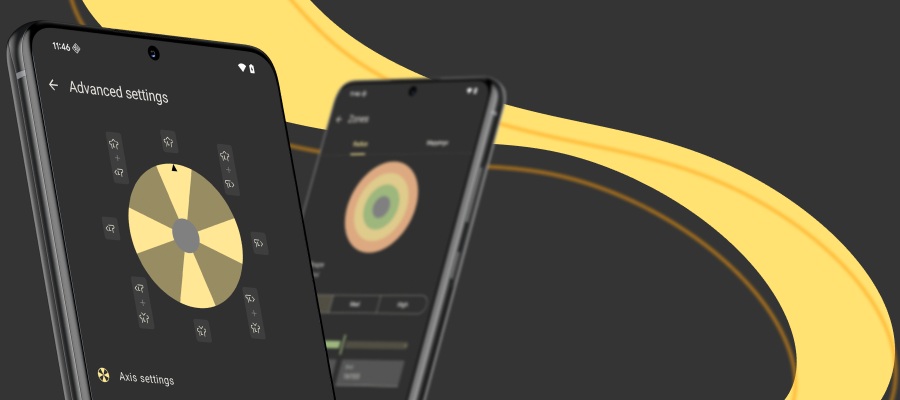
Tilt axes - configure which physical axes of the controller (pitch, yaw, roll) map to horizontal and vertical camera movement, giving you precise control over how tilting and rotating the controller translates to aim
-
Smoothing - filters jitter from natural hand tremor; higher values feel cleaner but add a small delay to input response
-
Dead zone - sets how much movement is ignored at rest, preventing crosshair drift between active inputs
-
Use Shift mode to bind gyro to a button hold - enabling motion only while holding L2/LT keeps the camera stable during general play and activates precision aiming exactly when needed
-
Create game-specific profiles to save separate sensitivity and activation settings per title - reWASD can switch profiles automatically when a game launches, so you never have to reconfigure manually
-
Save and apply the config - changes take effect immediately, no game restart required
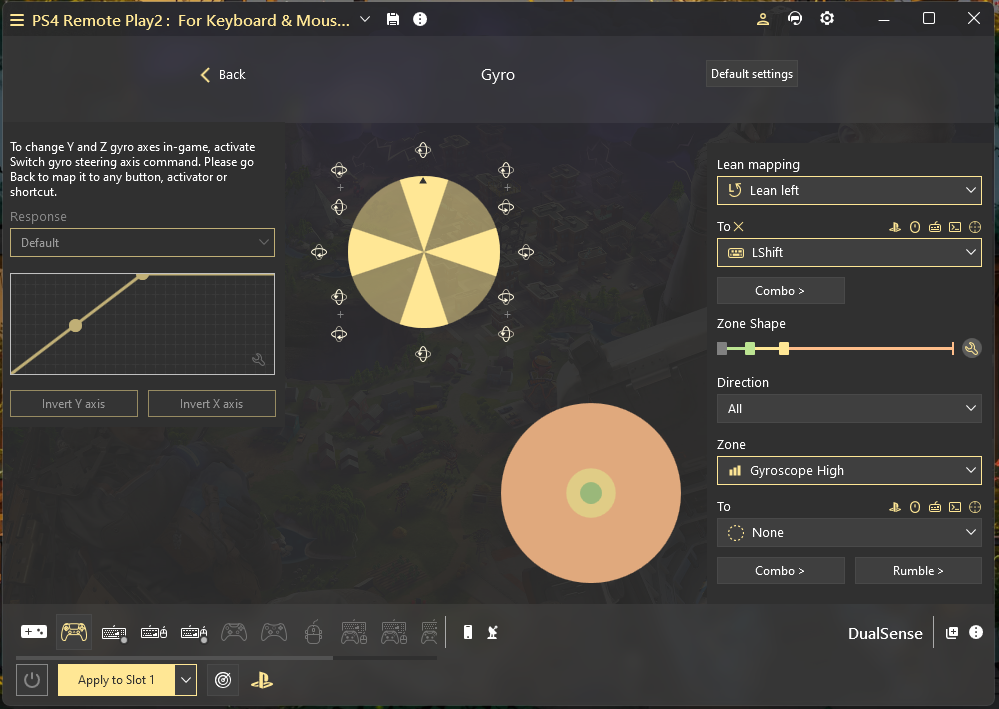
In practice, the result is a clean two-layer system: right stick for broad camera rotation, gyro for precise correction. For switch pro controller gyro on PC specifically, reWASD is often the more reliable path - Steam Input's Switch Pro gyro support can be inconsistent depending on the title, while reWASD handles it at the driver level with no per-game variability.
reWASD offers a 7-day free trial with full feature access on up to 2 PCs. Lifetime Access starts from €34.99 as a one-time purchase, covering up to 3 PCs depending on the chosen plan.
Gyro Aiming Tips - Getting the Best Results
Getting gyro controls working is the easy part. Getting them to feel natural takes a bit more intention.
Start lower than you think you need. Sensitivity that feels too slow on day one usually feels precise by day three. Muscle memory adapts to motion input faster than it does to stick acceleration curves - give your wrists time to adjust before pushing numbers up.
Keep the right stick involved. Gyro aiming on a PC works best as a second layer, not a standalone input. Use the stick to rotate toward a target, then let gyro close the gap. A practical split: stick covers roughly 90% of the movement, gyro handles the remaining correction.
Bind gyro to a button, not always-on. Both reWASD's Shift mode and Steam Input's gyro toggle let you tie motion input to a trigger hold. Enabling it only while aiming down sights keeps the camera stable during general movement and makes the switch to precision feel intentional.
Watch for drift on Switch Pro Controller. Extended sessions can introduce gradual gyro drift, particularly on Switch Pro hardware. Before reaching for a hardware recalibration, try tightening the dead zone in reWASD - in many cases that's enough to restore stable behavior without touching the controller itself.
Warm up before competitive sessions. Spend 10-15 minutes in a firing range or aim trainer before jumping into ranked play. Gyro sensitivity is felt through the hands, and a short warmup re-syncs muscle memory to your current settings more reliably than any config tweak.
For sensitivity methodology and practical gyro aiming technique from someone who has tested it extensively, Nerrel's YouTube channel is one of the most useful resources the PC gyro community has put together.
Gyro Controls vs. Mouse - Honest Take
Gyro is not a mouse. In fast-paced FPS titles where tracking requires sustained, high-speed cursor movement, a dedicated mouse and mousepad hold a clear mechanical advantage. That's worth stating plainly rather than overselling what gyro can do.
What gyro does well is fill the precision gap that sticks leave open. Third-person games, tactical shooters with deliberate target acquisition, console ports built around controller input, platformers with motion mechanics - in all of these, gyro aiming on PC delivers accuracy that pure stick play can't match.
The competitive precedent is already there. Splatoon built its entire aiming model around gyro. Fortnite added native gyro support and saw it adopted at high skill levels. Horizon Forbidden West is a measurably better experience with motion input enabled. None of these are edge cases.
For controller players who aren't switching to keyboard and mouse, gyro is the highest-return accuracy upgrade available. The hardware is already inside your controller - it just needs the right software to activate it.
Gyro controls on a PC come down to three things: a controller with a motion sensor, software that knows what to do with it, and fifteen minutes of initial setup. The hardware is likely already in your hands.
For the broadest compatibility - every game, every launcher, full control over sensitivity, smoothing, and activation behavior - reWASD is the most complete solution available. A free 7-day trial covers everything, so there's no commitment before you've had a chance to feel the difference yourself.
Gyro aiming rewards patience more than most input changes do. Give it a few real sessions before adjusting aggressively, and the accuracy improvement tends to become obvious on its own. Download reWASD, build your first gyro config, and test it in your next session.
FAQ
Yes. reWASD enables gyro controls on PC at the system driver level, so no Steam installation or active session is required. It works with any game or application running on Windows 10/11.
No. Xbox One, Xbox Series X|S, and both generations of Xbox Elite controllers do not include gyroscope hardware. Gyro aiming is unavailable on these devices regardless of what software you use.
Yes - Switch Pro Controller gyro on PC works through either Steam Input configuration or reWASD. Both tools detect the controller's motion sensor automatically once connected via USB or Bluetooth.
No. Gyro is a recognized input method with native support in a growing number of PC and console titles, and it is explicitly permitted in competitive play across the games that support it.
Yes. Because reWASD converts gyro motion into virtual mouse output at the system level, it works in every PC game and application - Steam, standalone, Game Pass, Epic, and anything else.
No. reWASD's requirements are modest: Windows 10/11 (64-bit), 4 GB RAM, and .NET Framework 4.7.2 or higher. The processing overhead is minimal and has no measurable impact on in-game performance.
You may also like
Summer Is Fading… But We’re Just Getting Started
.png)