How can controller to keyboard mapper multiply gamepad buttons
Did you know that an average keyboard has 104 buttons? And a common controller has 24 (including 2 sticks with 4 directions each). So, how can you create a controller config for a game that is meant to be played with keyboard and has lots of controls? It is actually possible with our PC controller software :)
Today we’re going to talk about using some of the awesome features of our controller to keyboard mapper, they can help you to map more buttons to a controller and ameliorate your gaming experience. Apart from super useful features reWASD has, Shift mode and Slots are the most exciting for me. They have a bit in common — adding extra bindings to the single controller. But actually, each of them has characteristics that must be described separately.
The best controller to keyboard mapper presents Shift mode!
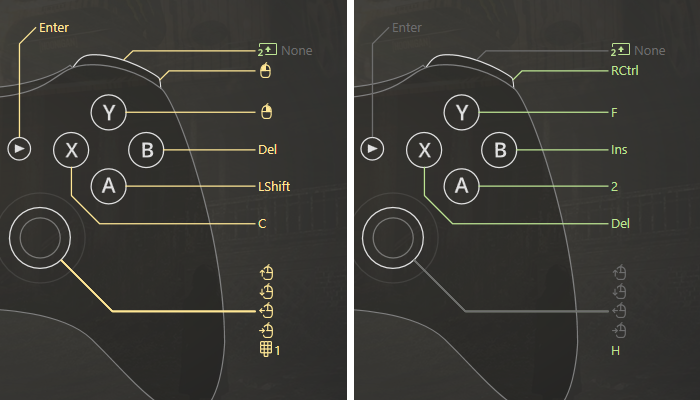
A must-have for every controller to keyboard mapper — Shift mode — is great to use when you need more mappings on your controller. You can map up to 117 keyboard buttons to one controller instead of 24. The way it works is the following: you pick a Shift modifier, and once you press and hold it (or press, if it's a Toggle Shift) — your main mappings change to another set. Our game controller for PC software permits to choose up to 4 Shift modifiers in one configuration.
This controller to keyboard mapper has some interesting nuances that you, folks, always forget about: if you left some buttons spare inside the shift, the main mappings will reproduce when the Shift modifier is activated. After the version 2.0 of our PC controller software released, we’ve added a feature that permits to deactivate the main mappings inside the Shift. Pick the Do not inherit option for the main mapping which you don’t want to reproduce while the Shift is active.
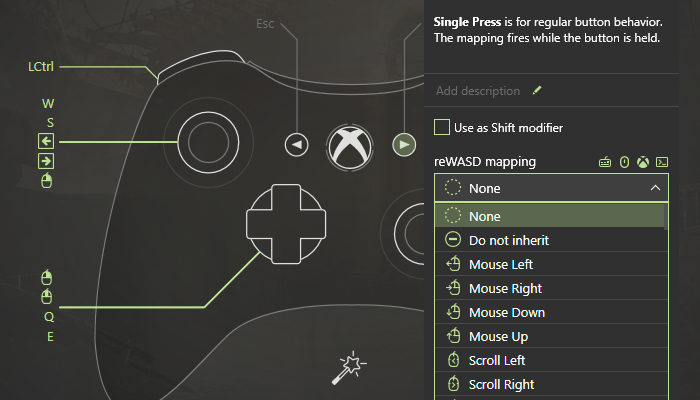
One more opportunity, our controller to keyboard mapper has for you to discover, is unmapping buttons inside the Shift. Imagine, the game has full controller support. And there are some additional keyboard keys you need to use while playing with the controller. You can surely map them as well if you use the right PC controller software! Just create the Shift modifier, add the needed keys, and mute the native controls by unmapping them. Thus, the native controls won’t work inside the shift once you unmap them, shift mappings will reproduce instead. If you hesitate, whether you need to use this option or not, check out the official manual with the examples of certain games where this feature is irreplaceable.
Now it’s time to find out how to create shifts:
- Download reWASD from our official page. You will have 7 days to try out this awesome game controller for PC software for free.
- Connect your gamepad to PC. You’ll see it in the bottom left corner, and you’ll need to pick the one you want to map.
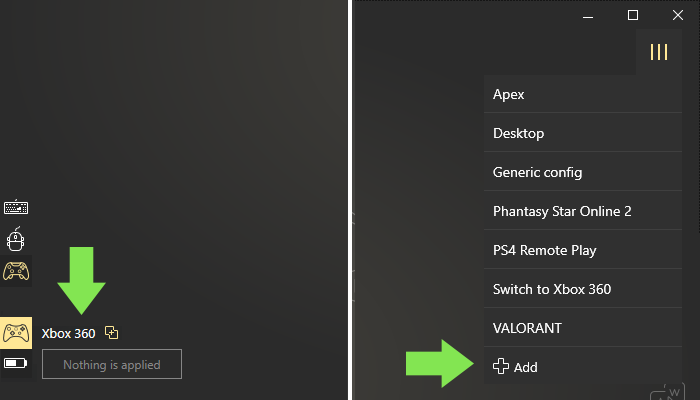
- Create a game profile (an empty config will be created automatically), and start remapping. Pick the controller button, then — the keyboard key that you want to assign to it.
Note, that our PC controller software has an awesome feature that saves your time: just click the controller or keyboard button — reWASD will hook it right away!
- When you’re done with the main mappings, it’s time to add some Shift modifiers. Pick the shift, and add mappings that will reproduce once the shift is activated.
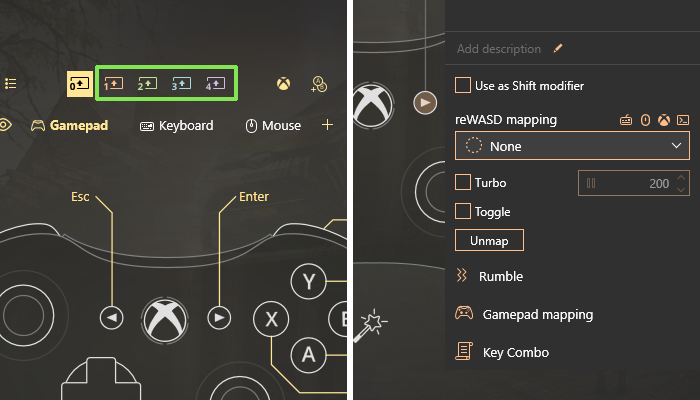
- Fill more shifts if needed, press Apply. You’ll see the Remap is ON in the bottom left corner. Now you can try this awesome feature in a game!
Activate up to 4 configs with our PC controller software - use Slots!

There's one more way to increase the number of possible mappings with the controller to keyboard mapper. It is super handy for games with multiple mechanics because usually each of them requires a different set of bindings. Our PC controller software permits to apply up to four configs at once for a single device. You can switch between them while in-game by pressing a specific button combination on your controller, or you can simply pick one from the main interface.
I use this feature for Elite Dangerous: first I created different configs for flying, combat, and mining. Later, I saved each configuration to a different slot, and now when I need to extract minerals, I simply change from Flying to Mining by using a hotkey (you can modify the hotkey for slots in Preferences). That’s how this PC controller software saves my time and nerves! :)
Note that if you switch to an empty slot, the native gamepad behavior will be active.
The interface is clear while using slots, let me show the nuances:
- Download reWASD from our official page. You will get a 7-day trial. We suggest to use the trial first, but we’re sure this game controller for PC software will melt your heart!
- Connect your gamepad to PC. You’ll see it in the bottom left corner, pick the one you want to apply slots to.
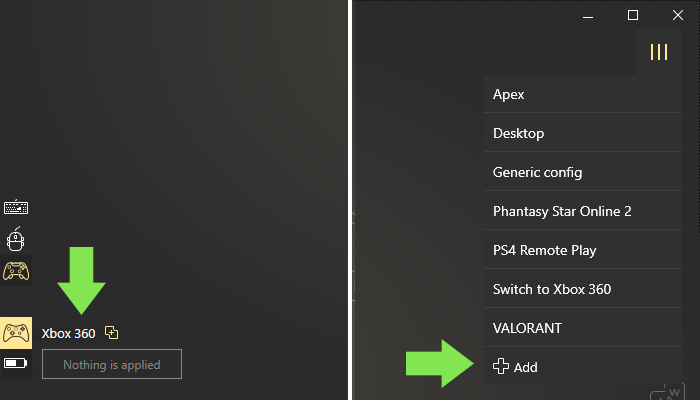
- Create a game profile (an empty config will be created automatically) and start remapping. Pick the controller button, then — the keyboard key that you want to assign to it.
Note, that slots are visible only if remap is on. If you have all the configs already saved in your PC controller software — you can simply choose the profile, then the config, pick the slot to assign the config to and press Apply.
- Once the config is ready, pick the Slot in the upper right corner (the one you want to apply the config to) and press Apply:
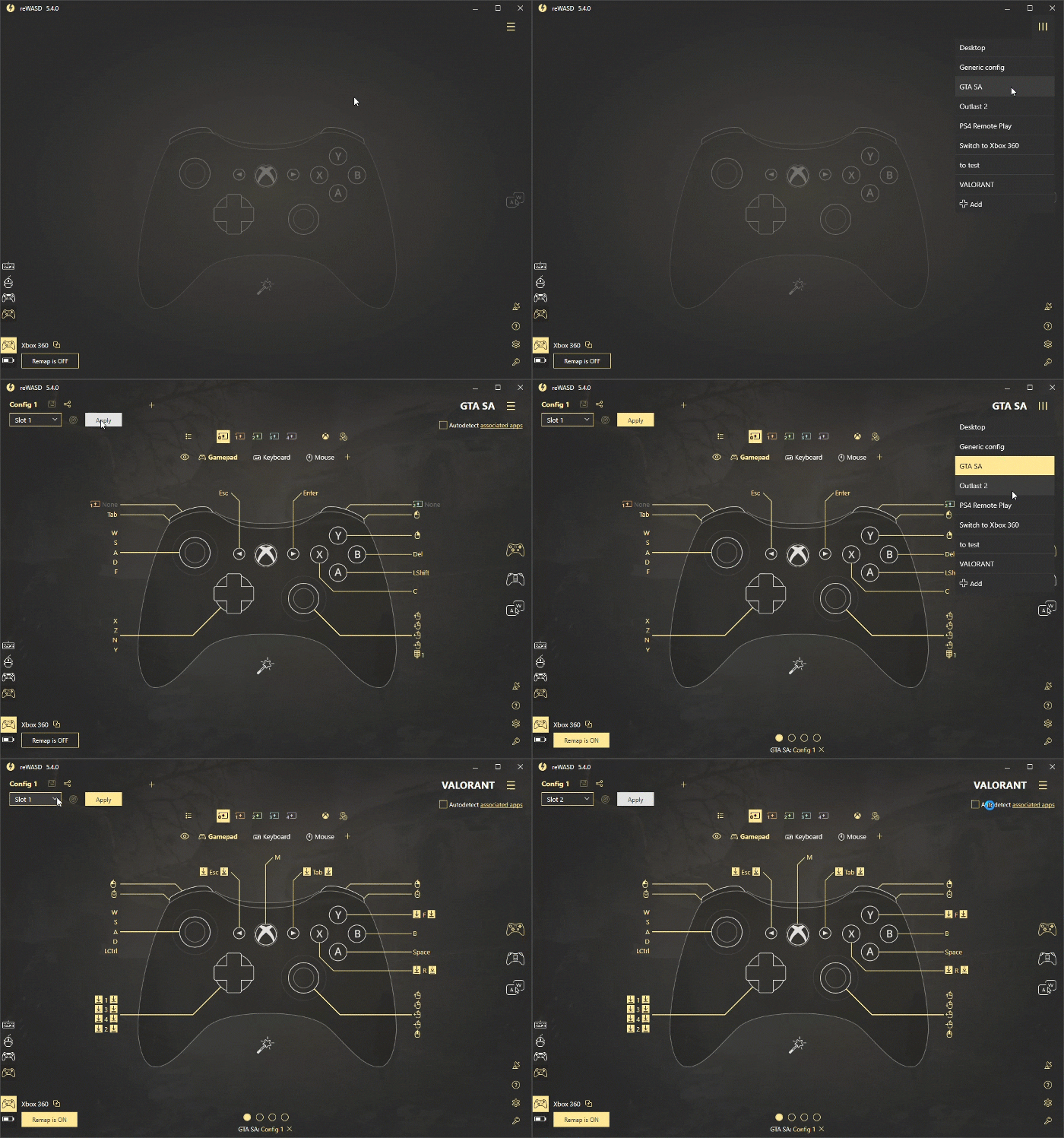
- Do the same thing for other configs. Once you’ve finished, you can switch between slots by picking them directly from PC controller software GUI, and you’ll see each config previously applied to a certain slot:
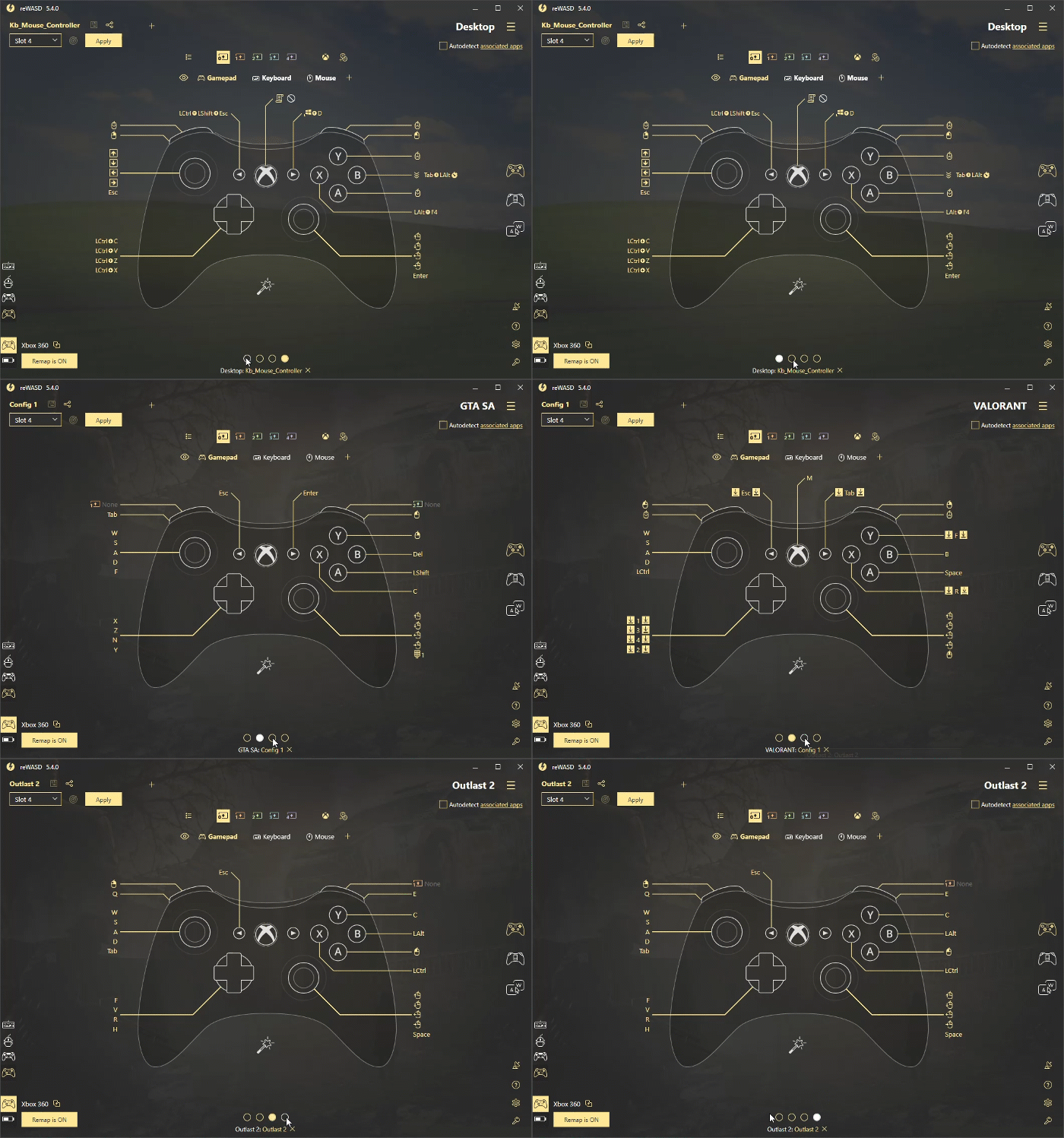
Now you can play using slots and switching between different configs at a glance.
There are much more stuff you can use for your own good in our game controller for PC software. Turn off the native controller support to overlap with your own preset, how to calibrate Xbox One controller sticks, use controller as mouse, remap Elite paddles, etc.
If you have any suggestions about new features for this controller to keyboard mapper — don’t hesitate to contact us here in comments below. Reach out to us wherever you feel comfortable: Discord text chat, on Facebook, or on reWASD Forum. Make sure to follow us on Pinterest, Reddit, and YouTube to keep your hand on the pulse.
You may also like
Summer Is Fading… But We’re Just Getting Started
.png)