How to use PS4 controller emulator for PC

You never know when you may need to emulate PS4 controller: you may want to play PS4 Remote Play games with keyboard and mouse, or you simply like the icons for DualShock 4 controls in games more than Xbox. Good thing is, that you can do that anytime, and with any devices you want. Today we’ll tell you about how you can use PS4 controller emulator to emulate PS4 controller with keyboard and mouse, with another controller, or even with controller and mouse.
Since reWASD 5.4, we have expanded reWASD functionality even more and added Touchpad emulation. Now, you can emulate touchpad swipes, taps, zooms for any controller, mouse, and keyboard. Feel free to learn more about Touchpad emulation from our manual!
What do I need to emulate PS4 controller?
First of all, you need a keyboard, a mouse, or a controller. It depends on what devices you have, and what do you want to play with. Then, you need to install the PS4 controller emulator — reWASD. We’re here, at your service, emulating controllers and remapping them :)
In case you don’t want to create a config from scratch, you can use the preset we have created for you. Once you install our PS4 controller emulator, you will see the existing profiles and configs. One of them is PS4 Remote Play, and that’s the one you need. You can use it with controller, or with keyboard and mouse group. Also, feel free look for configs in our community: that’s where reWASD users upload and store their configs.
Emulate PS4 controller with any other controller
Follow these recommendations to turn your gamepad to PS4 controller:
- Download and install reWASD
- Open reWASD, plug in your gamepad, and pick it in the device panel
- Create a new profile, the config is created automatically
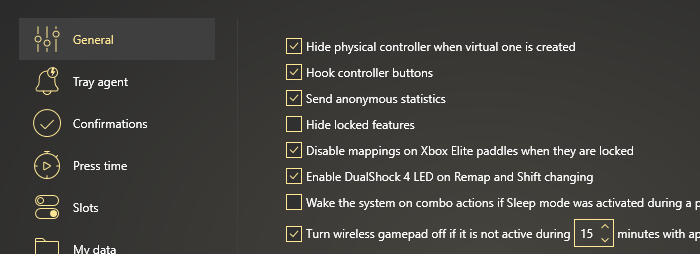
- Make sure that the setting Hide physical controller when a virtual one is created is active in Preferences:
Now it depends on what you want to achieve:
Case 1: simply turn a physical controller to PS4 gamepad
Press the magic wand below the image of a gamepad, click Virtual DS4, and press Apply. Done! Now you can enjoy the PS4 controller emulator magic.
Case 2: emulate PS4 controller and change a few (or a lot of) mappings
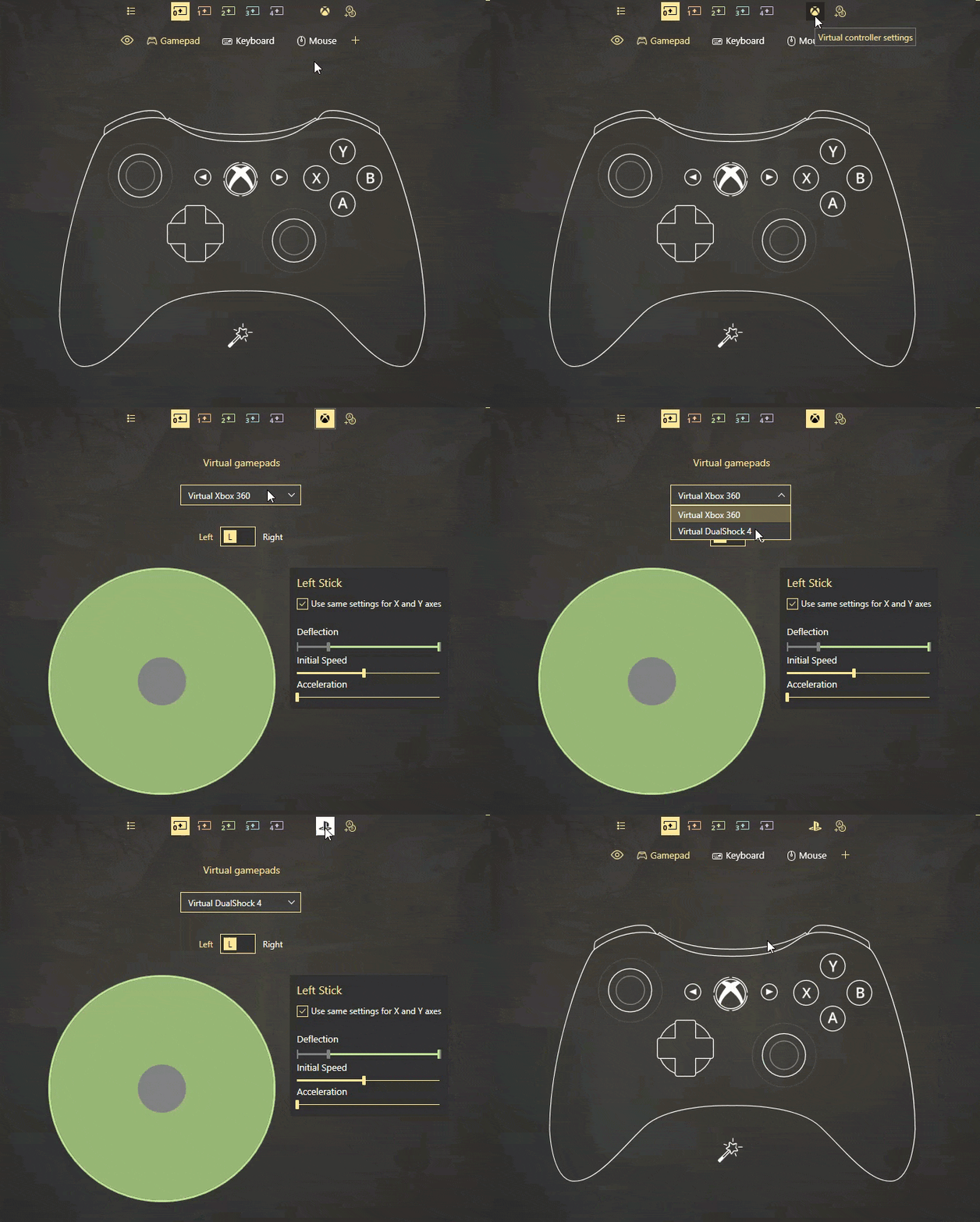
- First of all, make sure that the right controller type is chosen. Click on an Xbox icon above the controller, and pick Virtual DualShock 4. If you see the PS icon, leave it like that:
- Now, add the mappings you would like to change with our PS4 controller emulator. Let’s say, I want a Turbo on my Right Trigger, Toggle on Left Stick click, and I also want to swap Circle and Triangle. Don’t forget to unmap controller buttons you add the mappings to avoid double input
- Do all the modifications, then press Apply, and you’re good to go!
Using PS4 controller emulator for keyboard and mouse
Complete these steps to emulate PS4 controller with keyboard and mouse:
- Open reWASD, create a group of devices — of keyboard and mouse and save it
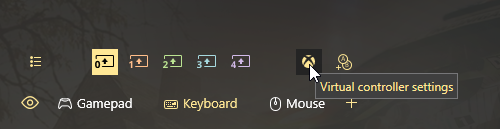
- Create the new config, change the controller type from Xbox 360 to DualShock 4 here, if needed:
- Now it’s time to add some mappings to emulate PS4 controller with keyboard and mouse: press Add, pick keyboard or mouse key to remap, Unmap it, and then add a DualShock 4 mappings to it. Is you have a gaming mouse, please check out how to remap additional buttons on gaming mouse
- Press Apply, and you’re good to go!
How to emulate PS4 controller for gamepad and mouse or keyboard?
- Open reWASD, create a group of devices — of controller and mouse/keyboard and save it
- Create the new config, change the controller type from Xbox 360 to DualShock 4 here, if needed:
- Pick the needed sub-config in the PS4 controller emulator to add all the mappings you want. Don’t forget to unmap the controls, to mute the native controller input
- Press Apply, and enjoy using your emulated PS4 controller :)
Here are some frequently asked questions about this PS4 controller emulator. If you don’t see anything related to your case, check out the Troubleshooting Help section in our manual.
My right stick mapped to mouse has a wrong sensitivity
Setting up your mouse to be the stick with PS4 controller emulator can be quite tricky, depending on your hardware and the game you’re playing. Make sure to check out advanced mouse settings and virtual controller settings to change the deadzone, sensitivity, and other settings!
We also have an amazing video that has a lot of tips you will find useful: we demonstrate the nuances on how the virtual PS4 controller stick works with different moves, describe reWASD settings you can change, show the most popular usecases, and give tips about what settings are the best to look into in-game.
How can I check if PS4 controller emulator works?
After you press Apply, you can whether use a native Windows feature: press Windows button, type joy.cpl, press Enter. Pick Wireless Controller from the list, and start pressing the buttons. Or go to this website and check whether PS4 controller emulator for PC works properly.
The game doesn’t seem to detect the virtual gamepad, what do I do?
PS4 controller emulator creates the virtual controller after you press Apply, and if you have opened the game before applying the config (before you emulate PS4 controller) — the game may have focused on the physical gamepad. Try to reopen the game after you turn remap ON. If that doesn’t help — enable Autoremap, Apply the config, reboot, and then launch the game right after startup. PS4 controller emulator will work once Windows launches, and a virtual gamepad will be the first for a game to pick.
We really hope this info about PS4 controller emulator was useful, and that now you know how to emulate PS4 controller with keyboard and mouse! If you have any questions, don’t hesitate to ask us below this post in the comment section. Reach out to us wherever you feel comfortable: Discord text chat, on Facebook, or on reWASD Forum. Make sure to follow us on Pinterest, Reddit, and YouTube to keep your hand on the pulse.
You may also like
.png)
How to Use Gyro Controls on PC