How to reassign keyboard keys and create keyboard macros?

reWASD 5.0 rolls in with a bunch of awesome updates, one of which is the ability to completely reassign keyboard keys. Apart from simple mappings, you can add any keyboard macros you could ever imagine, change the repeat rate, add descriptions to your mappings, emulate controller with keyboard and many other options. In this blog post, we will discuss the power reWASD has, see what and how exactly you can do with it!
What to start with?
- Download and install reWASD
- Pick the needed device in the bottom left corner. In this case, you’ll need a keyboard or a group of devices that includes a keyboard. If you have a gaming keyboard (a keyboard with programmable buttons) we suggest checking the reWASD manual about keyboard, to know more about this specific case.
If you pick a group of devices, you will also need to choose Keyboard subconfig on the top of the screen.
- Create a profile: press the menu in the upper right corner, and choose Add. The config creates automatically
- Review the virtual keyboard settings: press the Virtual input device settings icon on the right side of reWASD window, and change the options you need.
We insist on using Unmap function for all the keyboard keys. Otherwise, the mappings you add can get messed up with the keys on your physical keyboard.
Now you’re ready to reassign keyboard keys!
Here’s the contents, so you could pick the option you’re interested in, and jump to the right place of an article:
- emulate controller with keyboard, or simply remap keyboard
- make a rapid fire keyboard macros
- assign a mapping to several keyboard keys pressed simultaneously
- make a keyboard macros
- add an overlay with additional mappings to your keyboard
- reassign keyboard keys to double, triple, long keyboard key presses
Reassign keyboard keys and emulate controller with keyboard
Keep it simple: reWASD permits to change the output you get when you press the keyboard button. You choose the key on your physical keyboard, and assign another key that will reproduce once the button is pressed. Also, you can emulate controller with keyboard and reassign keyboard keys to controller button presses. Here’s how you can do that:
- While the keyboard config is chosen, click Add to begin
- Choose the keyboard key you want to remap: open the drop-down list and pick the needed key, or open the list and press the desired key on the keyboard. reWASD hooks it right away
- Now you’ll need to deal with the frame that you probably know pretty well. Pick the needed mapping from another drop-down list, or use the hook feature again to make it easier
- If you want to emulate controller with keyboard, you’ll need to scroll to the bottom of a list, and then pick the needed key
- Click Unmap, reassign keyboard keys to the actions you need, press Apply, and you’re ready to go!
Make a keyboard with macro keys: Rapid Fire
reWASD also permits to create a keyboard macros of a certain kind: Turbo or Toggle.
Turbo is the feature that permits to fire the mapped key or a keyboard macros with the adjustable pause between shots.
Toggle is the feature that allows imitating the pressed key: you press the button once and the key goes down, you press it once more and the key goes up.
So, to create a keyboard macros, you’ll need to:
- While the keyboard sub-config is chosen, click Add to begin
- Choose the keyboard key you want to remap: open the drop-down list and pick the needed key, or open the list and press the desired key on the keyboard. reWASD hooks it right away
- Now pick the needed mapping from another drop-down list, or use the hook feature again to make it easier. If you want to emulate controller with keyboard, you’ll need to scroll to the bottom of a list, and then pick the needed key
- The next step will be picking the Turbo or Toggle option. Just check the needed feature, and set the pause in case you want to use Turbo
You need to unmap the button for the proper input for Turbo. Otherwise, reWASD will recognize the pressed and held button input, and Turbo with pauses will not work.
- Click Unmap, reassign keyboard keys you also need in this config, press Apply, and you’re ready to go!
Keyboard shortcuts
Want to reassign keyboard keys to some new shortcuts, instead of changing the native keyboard layout? That is also possible with reWASD. You can choose the shortcut made of 2,3 or 4 buttons, and when it’s activated, some mapping reproduces.
Also, you can tune the shortcut press time in preferences: the bigger it is, the longer reWASD will wait for you to press all the shortcut activators.
To add shortcuts, you’ll need to:
- While the keyboard config is chosen, press the Shortcuts icon (that is near the Main configuration)
- Press Add to start creating the new Shortcut
- Pick the keyboard keys that will take part in the shortcut: you need to pick 2, 3 or 4 keyboard keys
- Choose what mapping will reproduce when you activate the shortcut
It’s important to remember that if you want to create the keyboard with macro keys like Toggle, and assign it to the shortcut, you will need to press the shortcut the second time to turn off the Toggled mapping.
- Reassign keyboard keys you also want to be in this config, press Apply, and you’re ready to go!
How to make a keyboard macro?
Among other possibilities, you can reassign keyboard keys and create a keyboard macros without any difficulties. You will face a flawless combo editor that is full of useful features and will permit to emulate controller with keyboard, or vice versa. Here is how the combo editor looks like:
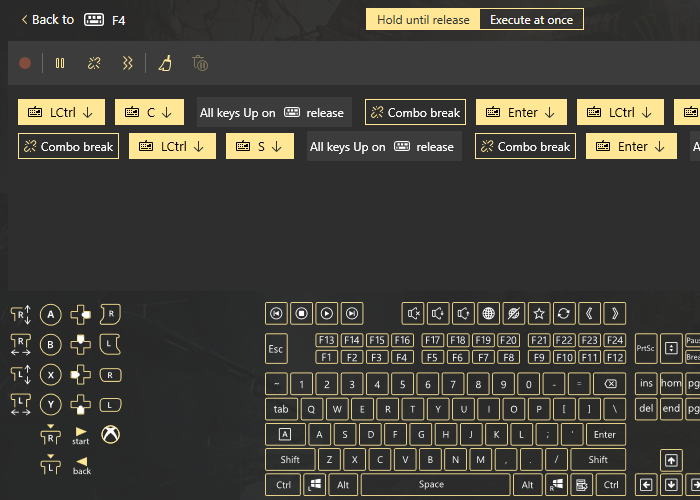
If you want to learn everything about the existing functions of the combo editor, we strongly recommend to check out the manual about Key Combos.
To create a controller or keyboard macros mapped to keyboard key, complete the following steps:
- Click Add to start editing the mapping
- Pick the keyboard key you want to remap, then add a mapping on the right side of the table. You will see the frame with regular options
Note, that we suggest using Unmaps for keyboard keys, so the native action did not bother the mapping you have added. However, you may lose the key you need to use, so the best option is to use activators. Or reassign keyboard keys you don’t use regularly
- Now press Key Combo to enrich your keyboard with macro keys: create the combo of controller buttons or keyboard keys. Or both :)
- Press Apply to make the config active, and you’re done.
Shift mode: create an overlay layout for your keyboard
Basically, you can add even more mappings on top of the basic keyboard layout! All you gotta do is follow these steps:
- First, you need to define the Shift modifier, and what type it will be. You can choose the Shift modifier to be Toggled, or regular - press-and-hold type. If you pick Toggle, you will need to press the modifier once, and the bindings will change to another set. If you press it once more, they will be back to the main layer. The regular Shift modifier will change the layer of mappings while you press and hold the Shift modifier button. It’s up to you :)
Note, that if you create a config for a group of devices, you can choose the Shift modifier from the other device. For example, you create the config for a group that consists of keyboard, controller and mouse, and you set the Toggle Shift modifier to Right Bumper on the controller. Then, you can create a new layout for keyboard and mouse too, and it will be active when you press the Shift modifier on the controller.
- Now you can add the keyboard macros or reassign keyboard keys to the new layer. The process is exactly the same as if it was for regular mappings. Don’t forget to use unmaps!
- When you’re finished with Shift 1, you can add 3 more layers of mappings if needed. If you’re adding some long combos, don’t forget to add the descriptions to mappings so you could always check out what combos you assigned before.
- Once you’re done with Shifts, press Apply, and now you can use your config!
How to reassign keyboard keys to Activators
This feature permits to create awesome activators and add a keyboard macros to existing buttons. You can reassign keyboard keys to double, triple, long activators, and a single press activator, which is a regular reWASD mapping. Also feel free to add start and release press activators, which will reproduce right after a certain button is pressed or released responsively.
Our keyboard macro software doesn't permit to add key sequences to Start and Release press activators, only for single, double, triple and long presses. Check out the manual for Activators to know more about them.
So, to make a keyboard with macro keys using Activators feature, follow these steps:
- Press Add button to start adding the mapping
- Choose the key you want to map the Activator to, and pick the type of Activator you want to assign. You can see all the activators on the top of the frame:
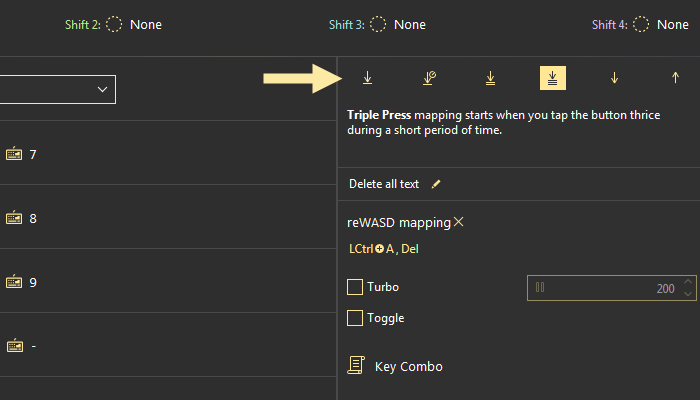
We can give you a tip: if you don’t want to mess with the basic keyboard buttons layout, we suggest adding keyboard macros as long press activators to the F1, F2, etc.
- Reassign keyboard keys you also need in this config, press Apply and you’re ready to go.
We hope that this article was helpful for you, and if you have any questions left about our keyboard macro software - please let us know in comments below! Reach out to us wherever you feel comfortable: Discord text chat, on Facebook, or on reWASD Forum. Make sure to follow us on Pinterest, Reddit, and YouTube to keep your hand on the pulse.
You may also like
Summer Is Fading… But We’re Just Getting Started
.png)