How to Use a Controller in Games That Don't Support It
You plug in your PC gaming controller, fire up a game you've been meaning to play for months - and nothing. The character won't move. The menus don't respond. The game acts like your controller doesn't exist.
It's one of the most common frustrations in PC gaming, and it happens more often than it should. Not every game ships with controller support for PC games - older titles were built around keyboard and mouse, many indie gems never got around to adding it, and some competitive games actively ignore gamepad input by design.
But here's the thing: the game's lack of support doesn't have to be your problem. By the end of this guide, you'll know exactly how to get any game responding to your controller - no matter the genre, no matter the engine, no matter how old the title is.
Why Some Games Don't Detect Your Controller
Before fixing the problem, it helps to understand why it happens in the first place.
It usually comes down to how games handle input at a technical level. Windows supports two main controller APIs: DirectInput (the older standard, dating back to the late '90s) and XInput (Microsoft's modern replacement, introduced with the Xbox 360 era). Most games built in the last decade expect XInput - but plenty of older or niche titles still speak DirectInput only. When your controller and the game aren't using the same "language," the result is a game that simply doesn't detect your controller, even if everything looks connected and fine. Microsoft's XInput documentation covers this split in detail if you want to go deeper.
Beyond the API mismatch, there's a simpler reason many games lack controller compatibility: it was never a priority. Indie developers working with tight budgets, strategy games built exclusively for mouse-driven UI, early 2000s titles - none of these were designed with a gamepad in mind, and retrofitting support is non-trivial engineering work.
And then there are the everyday culprits that cause a controller not working in game even when support technically exists:
-
Steam overlay conflicts - Steam Input can intercept controller signals before the game ever sees them
-
USB/Bluetooth driver issues - an outdated or mismatched driver silently drops input
-
Wrong controller mode - PS5's DualSense, for example, behaves differently over USB vs. Bluetooth vs. its proprietary wireless connection
Knowing which of these is your actual problem is the first step to solving it.
Your Options - From Free Workarounds to Proper Solutions
Good news: you're not without options. Several tools exist to help you play PC games with a controller, and the right choice depends on how deep your needs go.
Steam's built-in controller configurator is the easiest starting point - if you're already in the Steam ecosystem. It handles basic button remapping well and requires zero extra software. The catch is obvious: it only works for Steam games. Launch anything outside your library and you're on your own.
DS4Windows is the go-to free fix for PlayStation controller users. It emulates an Xbox controller so Windows and games recognize your DualShock or DualSense without drama. Solid tool - but it's hardware-specific and doesn't go much further than that.
Antimicro and JoyToKey are lightweight pieces of controller software that map gamepad buttons to keyboard and mouse inputs. They get the job done for simple cases, though both projects are largely inactive and lack support for modern controllers and advanced mapping scenarios.
reWASD is the option built for when the others fall short - 80+ controllers and any Xinput controller, any game, no restrictions on where or how you launch it. If you've ever hit a wall with free tools, that's exactly the gap it fills.
|
Tool |
Best for |
Key limitation |
|
Steam Input |
Steam library |
Doesn't work outside Steam |
|
DS4Windows |
PS4 / PS5 controllers |
Hardware-specific |
|
Antimicro / JoyToKey |
Basic remapping |
Outdated, limited features |
|
reWASD |
80+ controllers, most of the games |
- |
The free tools are worth trying first. But if your game lives outside Steam, your controller isn't a PlayStation pad, or you need anything beyond basic mapping - you'll outgrow them quickly.
What Is Controller Remapping - and Why It Works
Controller remapping sounds technical, but the core idea is straightforward: instead of waiting for a game to understand your controller, you translate its input into something the game already speaks fluently - keystrokes, mouse movements, or standard gamepad signals.
When you press a button on your gamepad, remapping software intercepts that signal and converts it into whatever input you've assigned. Want your left trigger to act as the Shift key? Done. Need your right stick to move the mouse cursor? Easy. That's the practical reality of how to map controller to keyboard - you're building a live translation layer between your hardware and the game.
What makes reWASD particularly effective is virtual device emulation. Rather than forwarding raw inputs, reWASD creates a virtual Xbox controller or virtual keyboard at the system level. The game doesn't see "a remapped controller" - it sees native input it was already designed to accept. That's why keyboard to controller mapping through reWASD works even in titles that have never heard of your actual hardware.
One concern worth addressing directly: this process doesn't touch any game files. Nothing is injected, nothing is modified. reWASD operates at the driver level, which is why it's compatible with the vast majority of titles.
Step-by-Step: How to Use reWASD to Add Controller Support to Any Game
This is where it all comes together. Follow these five steps and you'll be playing with a controller in games that were never designed for one.
Step 1 - Download and Install reWASD
reWASD runs on Windows 10 and Windows 11 - no additional dependencies, no complicated setup. Installation takes under two minutes.
Step 2 - Connect Your Controller
Plug in or pair your gamepad. reWASD's controller compatibility covers a wide range of hardware out of the box - Xbox One and Series controllers, PlayStation DualShock 4 and DualSense, Nintendo Switch Pro Controller, and many more. Once connected, reWASD detects the device automatically.
Step 3 - Create a Config for Your Game
Open reWASD and create a new configuration profile. You can tie it directly to a game's executable, so the profile activates the moment you launch that title - no manual switching needed.
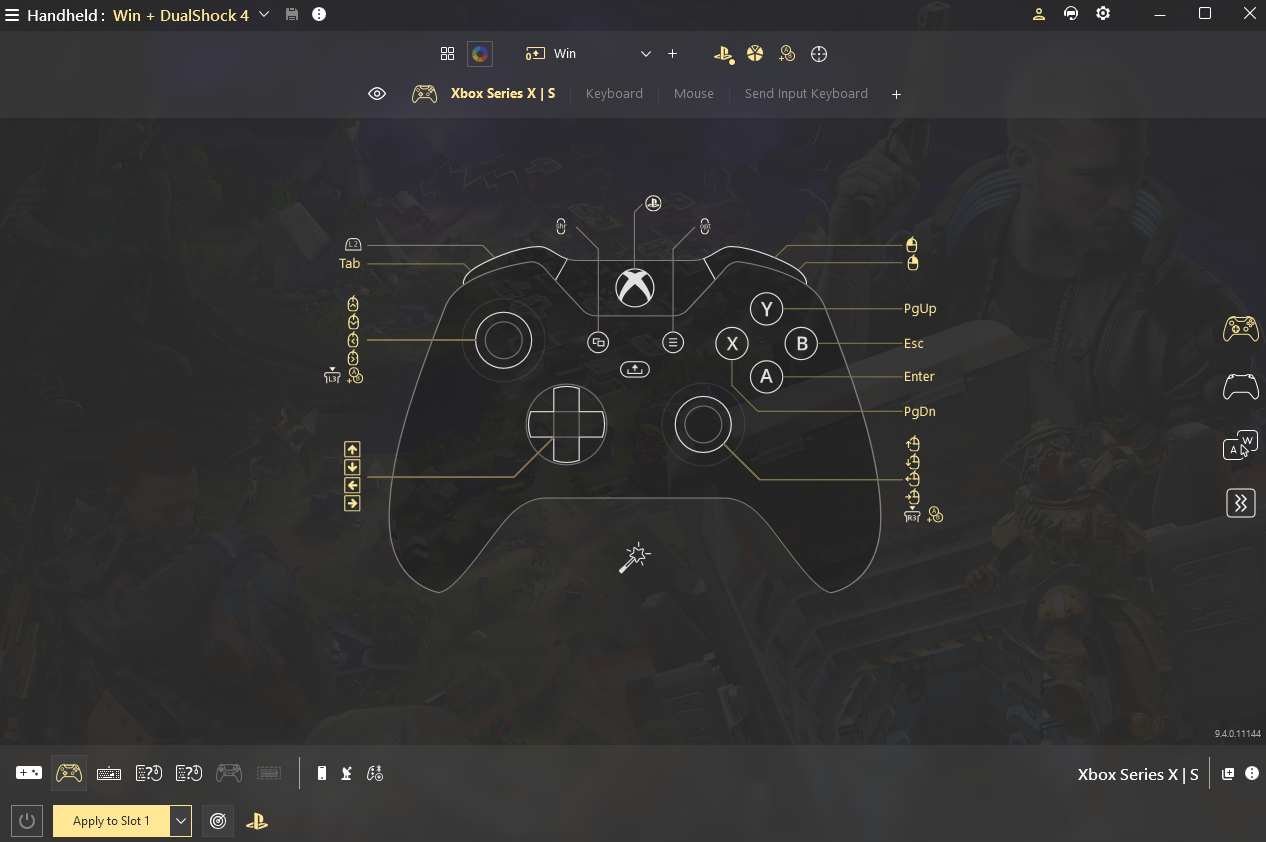
Step 4 - Map Your Controller Buttons
This is the heart of reWASD controller remapping. The interface displays your controller layout visually - click any button or axis, then assign it a keystroke, mouse action, or gamepad input. It's the most intuitive approach to how to map a controller to a keyboard without touching a single config file manually. Triggers, sticks, touchpad, gyro - everything is mappable, with layers and shifts available for more complex setups.
Step 5 - Launch the Game and Test
Hit play. If the mapping is set up correctly, the game responds to your controller as if support was built in from day one. Enable the reWASD in-game overlay to monitor which inputs are registering live - useful for catching anything that needs a quick adjustment.
Pro tip: Enable per-game auto-switching in reWASD. Your config loads automatically every time you launch that specific game - set it once, and you'll never think about it again.
Troubleshooting - Controller Still Not Working in Game?
You've set up your config but the game still isn't responding. Don't panic - most cases of a controller not working in a game come down to one of a handful of fixable conflicts. Work through this checklist in order.
Check that the reWASD service is running and that reWASD operates as a background Windows service. If it's not active, no mapping will happen. Open Task Manager to confirm, or restart the service directly from the reWASD interface.This can also be disabled in the settings - disable the driver and then enable it again there. A restart will be required after each of these actions.
Close conflicting controller software Running DS4Windows, Steam Input, or any other controller software alongside reWASD creates input conflicts where signals get intercepted twice or cancelled out. One tool at a time.
Verify the virtual controller output type. If a game doesn’t detect your controller even when reWASD is active, check whether the game expects XInput or DirectInput and change the Output device type in reWASD accordingly - this resolves most remaining issues. However, this point is more relevant for controller-to-controller remapping and is not particularly applicable to controller-to-keyboard mapping.
Update your drivers and firmware Outdated USB or Bluetooth drivers are a silent killer. Check Windows Update, your controller manufacturer's site, and Device Manager for anything flagged.
Run the game as Administrator Some older titles can't read input from non-elevated processes. Right-click the executable and select "Run as Administrator" to rule this out.
Disable Steam Input for the specific game Steam Input is useful inside its lane - but left enabled for titles that don't need it, it intercepts signals before reWASD gets a look in. Disable it per-game in Steam's controller settings.
Still stuck? reWASD's support documentation covers edge cases by controller model and game engine. You can find troubleshooting guides and setup instructions here: reWASD Help Center
Which Games Benefit Most from Controller Remapping?
Technically, any game can benefit - but some categories see a bigger transformation than others.
Old-school RPGs and strategy games are the surprise winners. Titles like the early Baldur's Gate entries or Age of Empires were built entirely around mouse-driven UI - nobody designed them with a gamepad in mind. A well-mapped PC gaming controller config turns them into a genuinely different, and often more comfortable, couch experience.
Competitive shooters benefit differently. Rather than replacing keyboard and mouse, remapping lets you fine-tune trigger sensitivity, assign macros to paddles, or build layered inputs for faster access to key actions.
Emulated retro games are arguably what controller support for PC games was made for. SNES, PS1, N64 titles were designed for a gamepad to begin with - playing them with one again just feels right.
Beyond gaming entirely, reWASD users regularly map controllers to media apps, creative tools like Lightroom or DaVinci Resolve, and even general desktop navigation. If an app accepts keyboard or mouse input, your controller can drive it.
The common thread: anywhere a keyboard and mouse create friction, a well-configured controller removes it.
Stop Letting Missing Controller Support Stop You
A game not supporting your controller used to mean accepting defeat or relearning muscle memory from scratch. It doesn't anymore.
With the right remapping setup, every game in your library - old or new, indie or AAA, Steam or otherwise - becomes fair game for your preferred way to play. reWASD handles the technical layer so you don't have to: one tool, any popular controller, most of the known games titles, zero coding required.
Ready to start? Download the reWASD free trial and have your first config running in under ten minutes.
Not sure where to begin? Browse the reWASD config library - hundreds of ready-made profiles for popular games, built by the community and free to use.
FAQ
Can I use a controller in a game that doesn't support it?
Yes. Games don't need native controller support for you to play with a gamepad. Controller remapping software like reWASD creates a virtual input device that translates your controller's buttons into keystrokes or mouse movements - the game receives input it already understands, with no modifications to game files.
Why doesn't my game detect my controller?
Most likely this only applies if you have multiple controllers connected to your PC: there may be an API mismatch where your active controller uses XInput, but the game is reading another device through DirectInput (or vice versa). Other common causes include Steam Input intercepting the signal, outdated USB/Bluetooth drivers, or the wrong controller mode being active. A remapping tool like reWASD lets you set the virtual output device type to match exactly what the game expects.
Is controller remapping safe? Will I get banned?
Remapping software operates at the driver level and doesn't modify game files or inject code into processes. reWASD is compatible with the vast majority of titles, including games with anti-cheat systems.
What's the difference between reWASD and free tools like DS4Windows or JoyToKey?
DS4Windows only works with PlayStation controllers. JoyToKey and Antimicro handle basic mapping but are largely outdated. reWASD supports 80+ controllers and any Xinput controller on most of the games - including titles outside Steam - and offers advanced features like layers, shifts, gyro input, and per-game auto-switching.
Does controller remapping work with Steam games?
Yes, but first make sure Steam Input is not active for that specific game. In most cases reWASD works without issues, but if Steam Input is enabled and also processing controller input, it may interfere with remapping. Disable Steam Input for that game in Steam’s controller settings and let reWASD handle the input.
Can I use a PS5 or Nintendo controller in games that only support Xbox input?
Yes. reWASD emulates a virtual Xbox controller at the system level, so any game that expects standard XInput will recognize your DualSense or Switch Pro Controller as if it were a native Xbox gamepad - no third-party drivers required.
You may also like
Summer Is Fading… But We’re Just Getting Started
.png)