Map Controller to Keyboard and Mouse: Full 2026 Setup
Ever launched a game with your favorite gamepad in hand - only to find it flat-out ignores the controller? You're not alone. Thousands of PC players hit the same wall every day: a title built strictly for keyboard and mouse, and a controller that feels far more comfortable to hold. That's exactly the problem controller-to-keyboard mapping solves.
Learning how to map controller to keyboard and mouse opens the door for several groups of players. Console gamers moving to PC get to keep their familiar gamepad even in titles that never shipped with controller support. Streamers gain flexible control schemes they can swap between genres on the fly. And for players with disabilities, remapping a gamepad's inputs to custom keys can make otherwise inaccessible games playable at all.
The good news: you don't need to be a programmer to set this up. In this guide, we'll walk through how mapping works, when it's worth it, how to configure it step by step in reWASD, and how it compares to the other tools out there - including the free ones.
What Is Controller-to-Keyboard Mapping?
At its core, controller-to-keyboard mapping is a form of input emulation: software intercepts the signals coming from your gamepad and translates them into keyboard and mouse commands before the game ever “sees” them. Press a button on your controller, and the game registers a keypress or a mouse click instead - the game has no idea a controller is even involved.
This is fundamentally different from how a controller works natively. Out of the box, a gamepad talks to a PC through standards like XInput or DirectInput, and games interpret that data as controller input - with the developer's own sensitivity curves, deadzones, and button layout. Controller keyboard mapping changes that relationship: the game reads emulated keystrokes and mouse movement instead of raw controller data, so you can play keyboard-and-mouse-only titles with a gamepad, and tune how your sticks respond in ways a game's native settings never expose.
This translation layer is exactly what controller remapping software provides. Valve's Steam Input, for example, can translate controller input into gamepad emulation, mouse-and-keyboard emulation, or its own API, depending on what a title needs (see the Steam Input documentation). Dedicated remapping tools take the same concept further: per-game profiles, macro chaining, multiple mapping layers, and precise control over how stick movement becomes mouse motion - areas where platform-level tools usually stop at the basics.
Why Map a Gamepad to Keyboard and Mouse?
Play Games With No Native Controller Support
This is the number-one reason players reach for a gamepad remapper. Not every PC game ships with proper controller support: older titles, strategy games, MMOs, and plenty of indie releases are built keyboard-and-mouse-first, locking controller players out entirely. Mapping translates stick and button input into keys and mouse movement the game already understands - effectively adding controller support to games that were never designed with one in mind.
Tune Stick Response Beyond What Games Allow
One honest caveat first: mapping a stick to mouse movement doesn't magically give you mouse-level precision - an analog stick is still an analog stick, and in some competitive titles you'll also lose aim assist. What it does give you is control. Instead of being stuck with whatever sensitivity options a game exposes, you set your own response curve, deadzone, and acceleration per game and per profile. For titles with poor or missing controller settings, that difference is night and day.
Accessibility for Players With Disabilities
Remapping isn't just a convenience feature - for many players, it's what makes gaming possible at all. Organizations like AbleGamers have pushed the industry toward full control remapping for over a decade, but native options still vary wildly from game to game. Mapping software fills that gap: it lets players consolidate complex control schemes onto the specific buttons, switches, or sticks they can reliably use - regardless of whether a given game offers robust remapping on its own. reWASD's Send Input feature goes a step further, letting assistive tools and scripts route their events through your mappings.
Streaming and Content Creation Flexibility
Switching between game genres throughout a stream often means switching control schemes entirely. With per-game profiles, creators build genre-specific setups in advance - one for shooters, one for platformers, one for menu-heavy RPGs - and swap between them instantly, without breaking the flow of a broadcast or fumbling with in-game settings on camera.
Best Controller Remapping Software in 2026
Not all remapping tools are built the same way, and the right pick depends on what you're trying to accomplish. Broadly, controller remapping software falls into three categories.
There are also hardware adapters - physical devices that translate input between the controller and the machine. They're mainly useful on consoles, where software remapping isn't an option; on PC they're pricier and less flexible than software, and profile changes usually still require a companion app.
What to Look for When Choosing a Gamepad Remapper
Weighing these criteria is where the category differences become clear. Platform tools cover the basics but stay confined to their ecosystem; free remappers handle simple swaps but fall short on tuning and layers; hardware adapters solve console-specific problems at a higher price. If you want the full package - low latency, deep macros, layered mappings, and cross-brand controller support in any game - dedicated software like reWASD is where all of it lives in one place. See the full feature rundown on the advanced controller mapping page.
Step-by-Step: How to Map Gamepad to Keyboard Using reWASD
Once you understand why remapping matters, the setup itself is refreshingly simple. Here's exactly how to map gamepad to keyboard using reWASD, from installation to your first working config. Total time: about five minutes.
Step 1: Install reWASD and Connect Your Controller
Download reWASD and install it - the free 7-day trial unlocks every feature, so you can test the full toolkit before deciding. Connect your controller, wired or wireless: reWASD automatically detects Xbox, PlayStation, and Switch controllers (and 100+ other models) as soon as they're plugged in or paired. No driver hunting required.
Step 2: Create a Profile
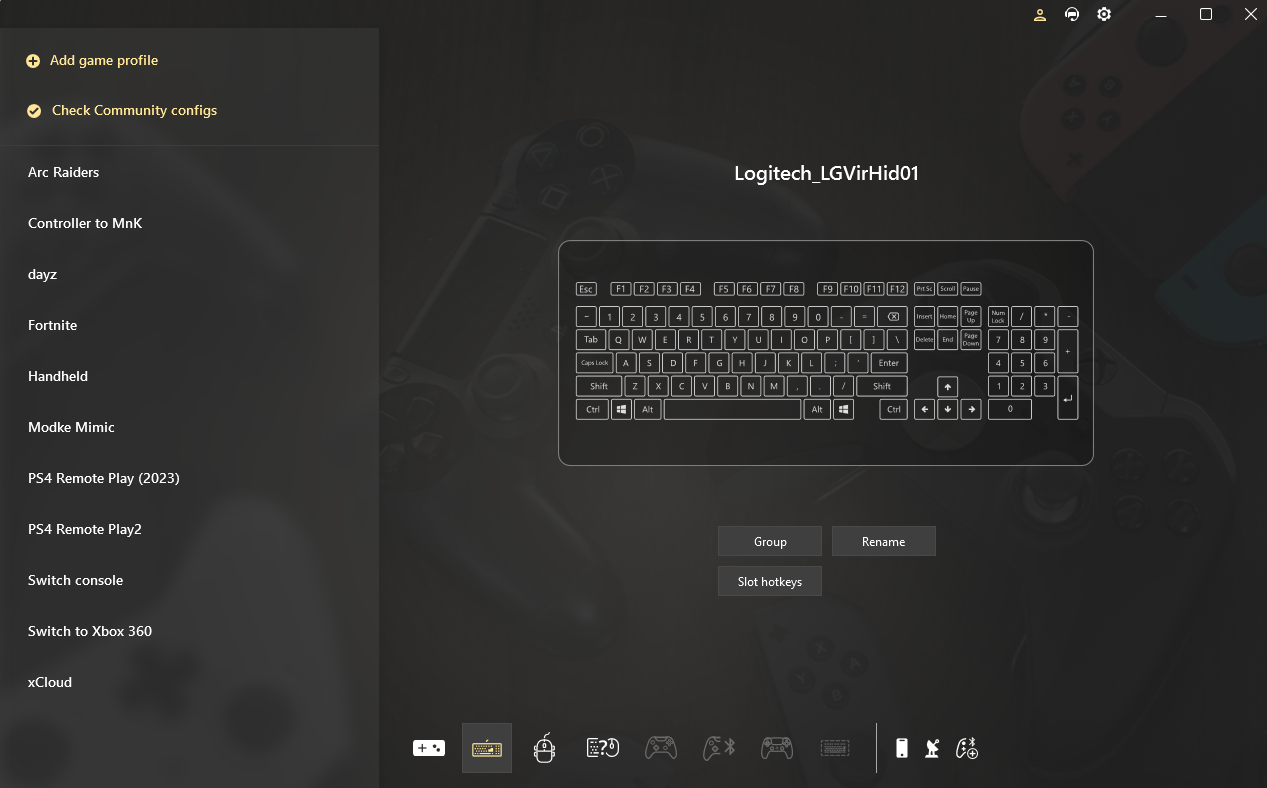
In reWASD, a profile represents a game or app, and each profile holds one or more configs - the actual mapping layouts. Click "Add game profile" at the top of the profile list, name the profile after your game (e.g., “Elden Ring” or “Desktop navigation”), and confirm. A blank config is created automatically, ready for mappings.
Step 3: Assign Keyboard Keys and Mouse Clicks to Buttons
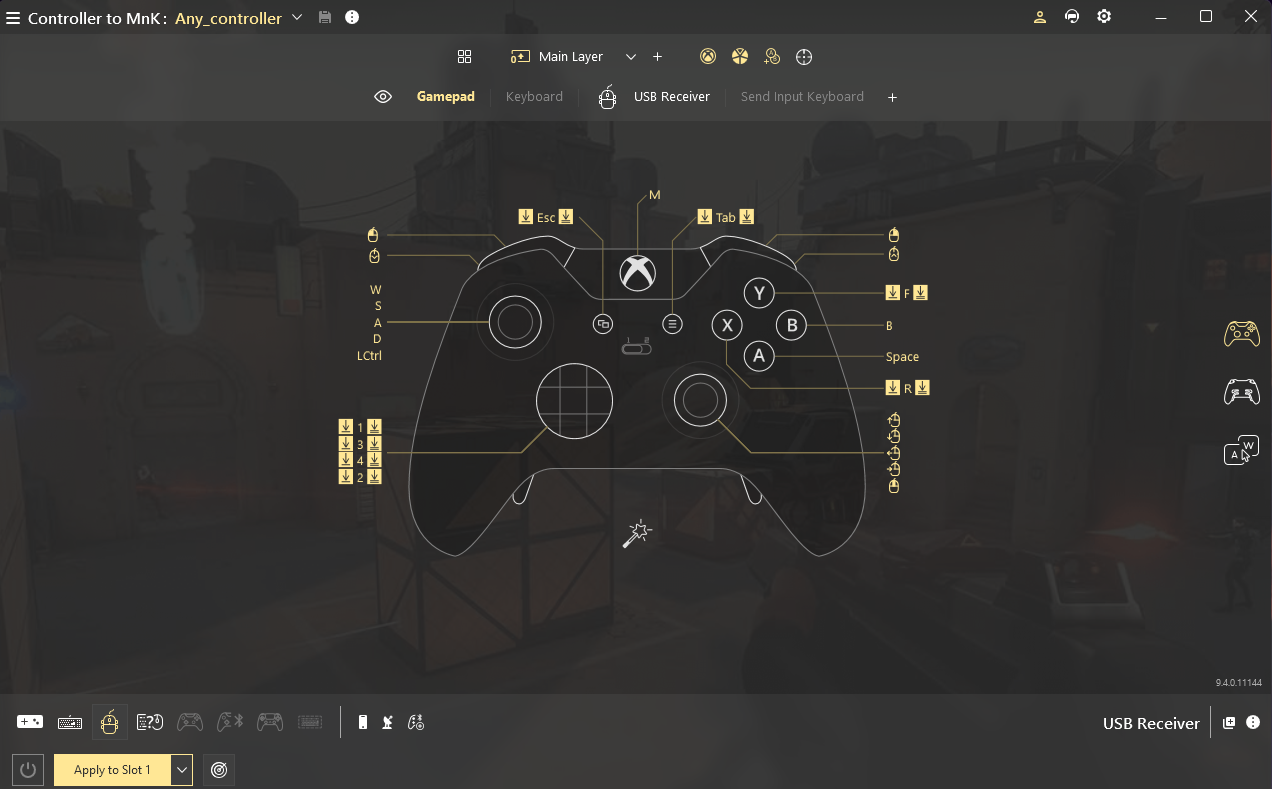
This is where the actual mapping happens. Click any control on the controller image - or simply press it on the connected gamepad - and pick a keyboard key or mouse button for it. Face buttons can become action keys, the D-pad can cover menus or hotkeys, and triggers map naturally to left and right mouse clicks.Repeat this for every control your game needs. Use Mute on any inputs you want the game to ignore - for example, to prevent double input when your game supports both a controller and mouse & keyboard.
Step 4: Map the Stick to Mouse and Tune the Response
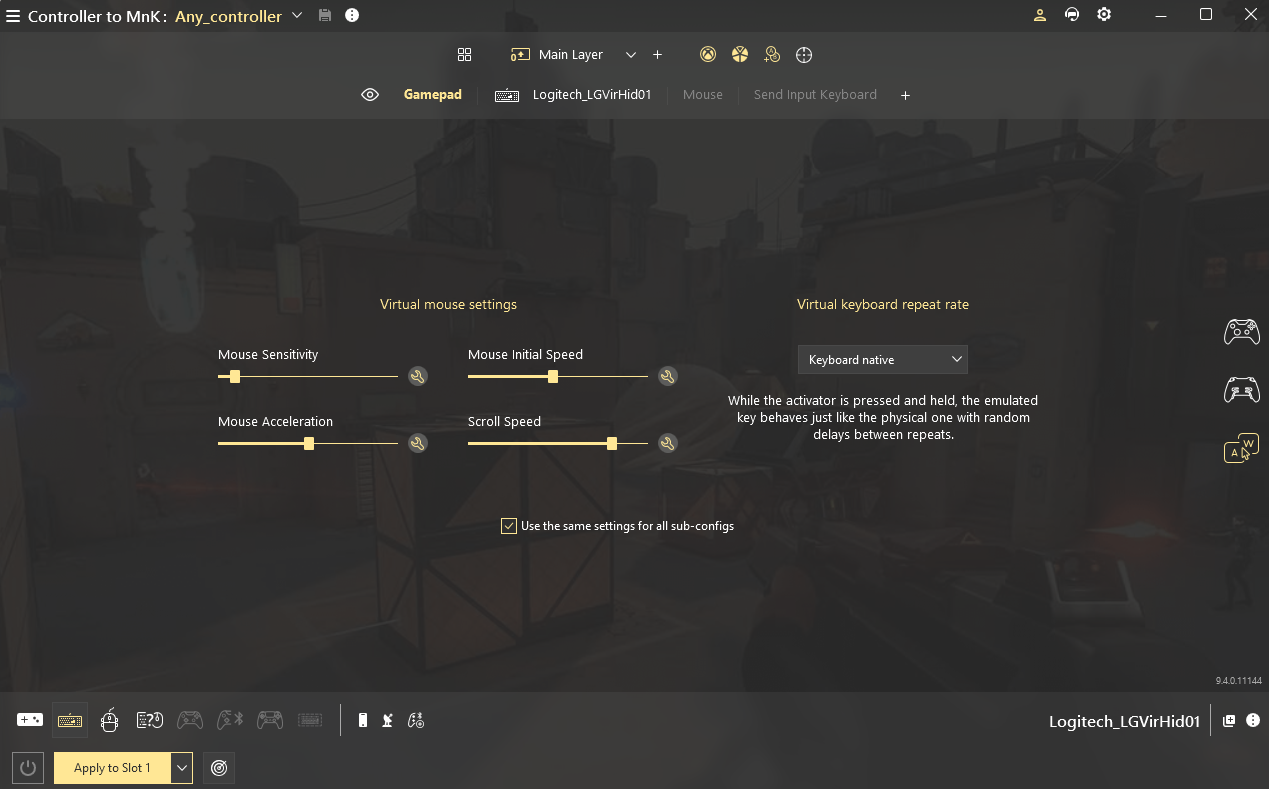
Select the right stick and assign mouse movement to it, then open the stick settings to make it feel right. Raw stick-to-mouse mapping without tuning usually feels either sluggish or twitchy, so adjust three things: sensitivity (overall speed), the response curve (how movement scales from center to full deflection), and the deadzone (how far the stick travels before input registers). Shooters typically want higher sensitivity with a tight deadzone; slower-paced games feel better with gentler curves. Map the left stick to WASD the same way for movement.
Step 5: Apply, Test, and Automate
Click Apply - when you see “Remap is ON,” your mappings are live. Launch the game and test every input before a real session, then fine-tune anything that feels off. Two features worth enabling right away: associate the profile with the game's executable so reWASD applies the config automatically whenever the game starts, and use slots to keep up to four configs on one controller, switchable with a hotkey mid-game.
Shortcut for the impatient: you don't have to build from scratch. The reWASD Community hosts thousands of ready-made configs for specific games - import one into your profile, click “Save and Apply,” and adjust from there.
Advanced Tips for Precise Controller-to-Mouse Mapping
Getting a basic mapping working is easy. Getting it to feel genuinely good - responsive, predictable, comfortable over long sessions - takes a bit more tuning.
Sensitivity Curves, Acceleration, and Deadzones
The relationship between stick deflection and cursor movement shouldn't be linear - a well-tuned curve lets you make small, precise adjustments near the center while still allowing fast, sweeping movement at full tilt. Acceleration adds another layer: low values give consistent, predictable motion; higher values let quick flicks translate into faster cursor movement, which some players prefer for target acquisition. Deadzone matters just as much: too small and stick drift moves your cursor on its own; too large and you lose precision near the center. Start moderate and adjust gradually while testing in-game. Learn more here.
Shift Layers: Multiply Your Buttons
reWASD's Shift mode turns any button into a modifier that activates an entirely separate mapping layer - up to four layers per config. Hold a bumper and your face buttons become a second set of hotkeys; release it and they snap back. Combined with Activators (different actions for single, double, triple, and long presses), a standard 16-button gamepad can comfortably cover control schemes designed for a full keyboard.
Macro Chaining for Combos
The Combo feature compresses multiple actions - key presses, mouse clicks, pauses - into a single input, useful for anything from fighting-game strings to repetitive crafting sequences in an RPG. The main thing to watch is timing: macros with fixed delays can feel stiff if a game's input windows are tighter or looser than expected, so test and adjust delay values rather than relying on defaults.
Troubleshooting: Input Lag and Double Inputs
Input lag is usually caused by an overly complex macro chain firing on every input, or by another background program also reading the controller. Simplifying macros and closing other input software typically resolves it. Double inputs - one press registering twice - happen when two programs read the controller simultaneously, most often a platform's native controller support running alongside your remapper. reWASD hides the physical controller from Windows while remap is on, which prevents most of these conflicts; if a launcher still grabs the gamepad, mute its built-in controller support for that game. The reWASD help guide covers the edge cases.
Controller Remapping for Specific Genres
The right setup looks different depending on what you're playing. A configuration that feels great in a shooter can feel clumsy in an RPG.
FPS Games: Predictable Aim
Shooters are where stick-to-mouse tuning matters most. Aim for a configuration that keeps your crosshair movement predictable under pressure: moderate-to-high sensitivity, a tight deadzone, and minimal acceleration. Triggers map to mouse clicks for firing; face buttons cover reload, crouch, and abilities. Expect a learning curve against mouse players in competitive titles - and check the game's policy first (more on that below).
MMO/RPG: Hotbar Mapping
MMOs present a different challenge - not aim precision, but sheer input count. A typical hotbar holds a dozen or more abilities, far beyond a controller's buttons. Shift layers solve this: holding a bumper while pressing a face button reaches a second or third bank of hotbar slots, multiplying available abilities without your hands ever leaving the controller.
Fighting Games: Macros, With Care
Combo macros can map complex input strings to a single press - great for practice, accessibility, and casual play. In competitive settings, though, most fighting-game communities and tournaments explicitly restrict macro use, so treat them as a training and comfort tool, not a ranked-ladder strategy.
Wrapping Up: Build Once, Play Everywhere
Learning how to map controller to keyboard and mouse pays off no matter which camp you're in. PC gamers unlock titles with no native controller support. Tinkerers get response tuning far beyond what in-game settings expose. Players with disabilities gain access to games that would otherwise be unplayable. And streamers switch genres without breaking their flow.
The right controller remapping software makes all of it straightforward - no soldering, no hacks, just profiles you build once and reuse forever. Ready to try it yourself? Download reWASD, start the free 7-day trial, and have your first config running in about five minutes - or grab a ready-made one from the Community and skip straight to playing.
FAQ
Is it legal to map a controller to keyboard and mouse?
Yes - remapping software itself is legal. Whether it's allowed within a specific game is a separate question, since anti-cheat policies vary by title. Basic button remapping is usually fine; automated macros are the more common source of bans, so check each competitive game's official policy.
Does controller remapping cause input lag?
A well-configured setup adds negligible, usually imperceptible latency. Noticeable lag is typically caused by overly complex macros or by another program reading the same controller at the same time.
Can I use a gamepad remapper on any PC game?
In most cases, yes - since remapping happens at the input level, it works regardless of whether a game has native controller support. The exception is titles with strict anti-cheat systems that flag third-party input software, so check a game's policy first.
What's the best controller remapping software for beginners?
Look for a visual mapping interface, built-in profile management, and broad controller compatibility. reWASD covers all three - with 100+ supported gamepads, a community library of ready-made configs, and a free 7-day trial so you can test everything before buying.
You may also like
Summer Is Fading… But We’re Just Getting Started
.png)