How to change function keys on Windows 10

reWASD is in bloom, virtual controllers, keyboard and mouse remapping, macro editor… And it grows! There’s no such thing as ‘enough buttons’, and that’s why you’re here. We will tell you how to change function keys, how to save the native layout and assign more actions with shortcuts and activators, assign F13-F24 keys to existing buttons, or change function keys to macros.
What is the function key?
Take a sneak peek at your keyboard. See that row of F-keys? Those are the function keys. Usually, some default actions are assigned to them in Windows; for example, F1 opens the Help Manual, F2 renames files, F3 launches search, etc. If you own a laptop, you probably know that the combination of Fn and one of the function keys can reduce brightness, volume, and other options.
Note: if you decide to change function keys and remap them to something else using Unmap, the actions triggered by Fn and function keys will still work on your laptop. You won’t lose them!
So, every other step in this how-to post will start with:
- Install reWASD to your PC
- Create a new profile, the config is created automatically
- Go to keyboard sub-config, you can pick one above the image of a device
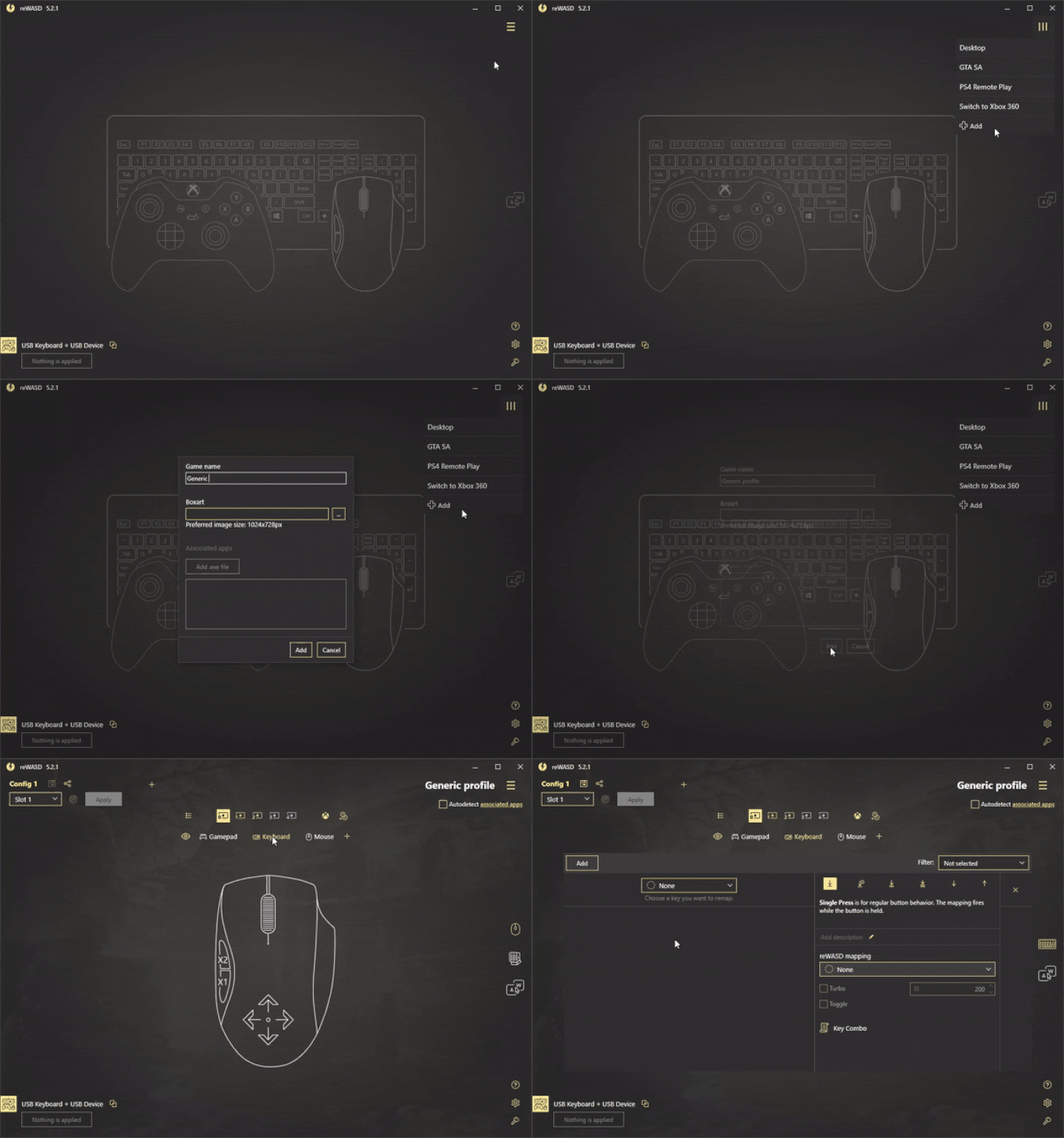
How to change function keys?
That’s pretty simple. Let’s start with what you can assign them to: keyboard keys, mouse keys and moves, also controller buttons. We highly recommend to unmap the function keys you want to change, to mute the native input and let the mappings work properly.
So now you’ll need to:
- Click Add to start adding mappings and pick the first of the function keys you want to remap
- Unmap it, and assign the required key to the chosen function key. You can use Turbo or Toggle to take your mapping to another level ;)
- Click Apply, and go test the mapping!
How to map F13-F24 to the keyboard, or remap them?
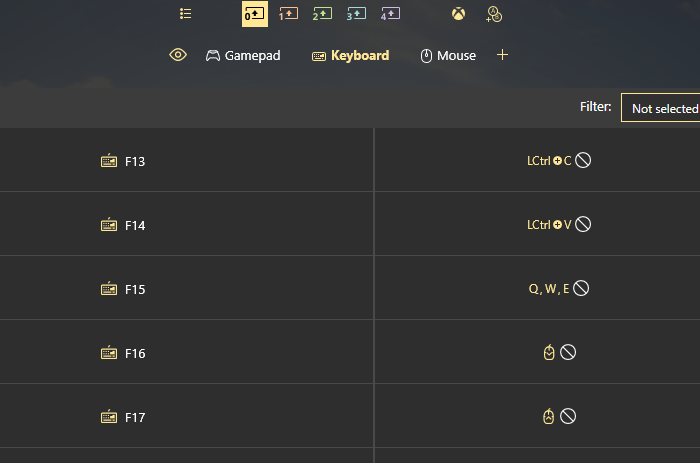
Since reWASD 5.2, you have an option to map F13-F24 to any keyboard, mouse or controller button, or vice versa. What we strongly recommend, is to assign F13-F24 keys to double or long-press activators on existing function keys (F1-F12), in case you need those keys on the keyboard. But honestly, it’s up to you, and you can even map them to the mouse wheel if you need it.
To do that, you need to:
- Click Add to create a new mapping, pick the function key you are adding a mapping to, unmap it if needed, add the mapping on the left side of a frame
- Repeat until all the needed mappings are assigned
- Press Apply to save changes and turn on the mappings
How to change function key to macros?
reWASD also gives you the possibility to add macros to function keys. Macro editor permits to tune pauses, the duration of the button press, add the number of iterations a combo must reproduce, also you can record the combo right away from your keyboard, and more. For the combo to reproduce properly, we highly recommend unmapping the function key you assign the combo to: this will mute the native input and let the sequence work as intended.
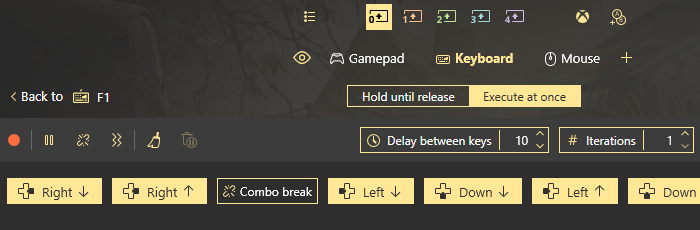
Once you’ve installed reWASD, created a new profile and config, and opened keyboard sub-config, follow these steps:
- Press Add to create a new mapping
- Pick one of the function keys you want to change, and unmap it
- Now go to the Key combo menu that is in the bottom of the frame
- Once you’ve opened the combo editor, you can whether press Record button and record the macro by tapping the needed keys, or you can add key by key to the sequence
Note: mind the pauses. Many games require the 20-30 millisecond pauses to read the input properly, so tune your combo wisely.
- When the combo is ready, press Apply and you’re good to go!
How to use the function keys for more purposes?
Our software permits not only to change function keys but also to assign new mappings and save the native layout at the same time. There are several ways to do that. You can whether use Shortcuts feature and create the combinations of different function keys to reproduce some kind of mapping.
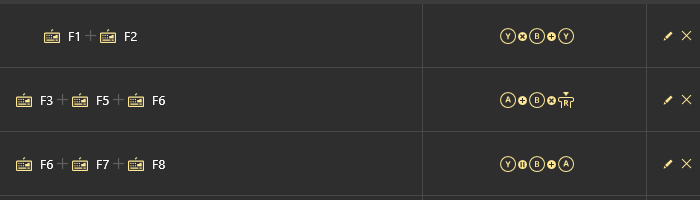
Also, you can use Shift modifier, to add an overlay with additional mappings: this would be perfect to assign the F13-F24 row to the existing function keys with a toggled shift modifier!
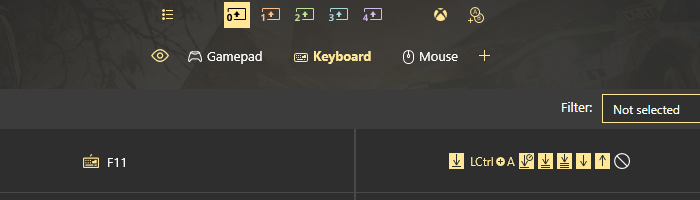
And, we’ve mentioned them in this post before, Activators — change function keys to double, triple, long keyboard key presses. A single press will still be the native action of a function key, and the activators will work the way you decide! Zing zang, all ready :)
We really hope this info about how to change function keys was useful, and that now you know more about function keys! If you have any questions, don’t hesitate to ask us below this post in the comment section. Reach out to us wherever you feel comfortable: Discord text chat, on Facebook, or on reWASD Forum. Make sure to follow us on Pinterest, Reddit, and YouTube to keep your hand on the pulse.
You may also like

Introducing reWASD Basic
Summer Is Fading… But We’re Just Getting Started