Inside reWASD 9.4: Wii Controllers, Flydigi Vader 5 Pro, Legacy License Changes and More

More Flydigi Controllers Join
reWASD Support List
reWASD 9.4 expands Flydigi support with official support for Flydigi Vader 5 Pro, as well as the Flydigi Direwolf 2, 3, and 4 series controllers.
Flydigi Vader 5 Pro offers full reWASD compatibility. To use Vader 5 Pro with reWASD, make sure the controller firmware is updated to version 7.1.4.5 or newer. We also recommend enabling the “Allow third-party apps to take over mappings” option in the Flydigi Space Station software to ensure proper controller detection and exclusive access.
Flydigi Direwolf controllers lineup is also fully supported in reWASD, though some hardware limitations still apply depending on the model. For example, Direwolf 2 uses a simplified dual-axis gyro implementation and back paddles aren't available for remapping. As with other supported Flydigi devices, we recommend using the controllers via cable connection or the official Flydigi dongle for the best compatibility and stability.
No More Questions About
How to Connect Wii Controllers to PC
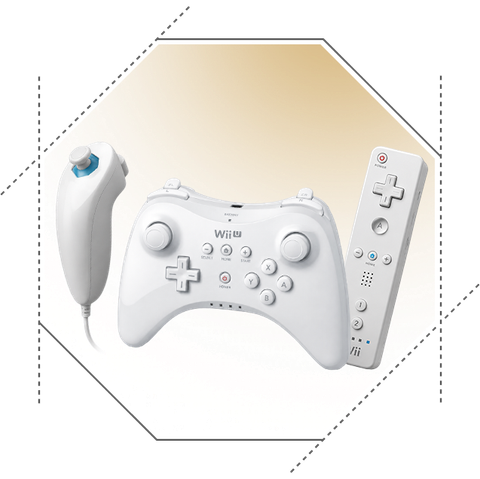
Nintendo Wii controller support is finally here in reWASD 9.4. It’s been one of the most requested additions for a long time, and we’re happy to finally bring native support for the Nintendo Wii controller lineup, including Wii U Pro Controller, Wii Remote, and Nunchuk.
Since Nintendo Wii controllers use their own wireless connection flow, reWASD 9.4 also introduces a new built-in Bluetooth pairing feature directly inside the app. To connect a supported wireless device, simply use the new Pair option at the bottom of the device panel, select the Nintendo Wii pairing flow, and reWASD will automatically search for nearby controllers.
The new pairing system is also available for other supported wireless devices, allowing you to connect compatible controllers directly through reWASD without opening Windows Bluetooth settings.
We’ve also added a new Unpair option for wireless devices. You can now right-click a controller and remove it directly from reWASD in just a click.
Authorization Is Now Required for
Using Legacy License Keys
As part of our ongoing efforts to strengthen platform security and improve protection for user accounts and license data, reWASD 9.4 now requires authorization before using legacy license keys.
Your existing legacy keys remain fully valid and functional, but they can now only be used through the reWASD account they belong to. After signing in, simply select the required legacy license inside the app and continue using reWASD as usual.
As part of this transition, we’ve removed the “Continue with serial number” option from the latest reWASD versions. Older app versions will also no longer validate legacy keys before authorization. These changes are part of our continued efforts to improve overall platform security and provide a safer, more reliable experience for all reWASD users.

Improved Compatibility with
Selected Games and other fixes
With reWASD 9.4, affected titles can now launch normally again without requiring users to uninstall the software. In some cases, closing the reWASD interface before starting the game may still be recommended.
At the same time, we strongly encourage users to respect the rules and policies of competitive online games. reWASD is designed as a customization and accessibility tool, and we always recommend using it responsibly.
Alongside compatibility improvements, reWASD 9.4 also includes multiple stability fixes, security improvements, workflow refinements, and optimizations related to overall application performance.