Custom Controller Layout for Accessibility for One-Handed Use
Gaming is for everyone - but most controllers were built as if they weren't. The standard two-handed layout assumes full bilateral mobility, leaving millions of players with motor disabilities, limb differences, or temporary injuries without a comfortable way to play. According to the CDC, roughly 1 in 4 American adults lives with some form of disability - and that number doesn't shrink at the gaming table.
The good news: the hardware barrier is only half the problem, and the software half is fully solvable. With the right remapping tool, any standard gamepad can be restructured around what you can do - not what the manufacturer assumed.
This guide walks you through building a practical one-handed gaming controller setup on PC from the ground up. From shift layers to custom combos, expanding accessibility options for PC gamers has never been more achievable - and reWASD is where that transformation starts.
Why One-Handed Controller Setups Matter
AbleGamers, one of the leading accessibility-in-gaming nonprofits, estimates that around 46 million gamers in the United States live with a disability — many of whom face real, daily friction just getting a game to respond to their input the way they need it to.
The reasons vary widely:
-
Limb difference - congenital or acquired, affecting one arm or hand entirely
-
Stroke or neurological recovery - where one side of the body has reduced strength or coordination
-
Repetitive strain injury (RSI) - a growing issue among long-session PC and console players
-
Temporary injury - a broken wrist or post-surgery recovery that shouldn't mean weeks away from gaming
Microsoft recognized this gap directly when developing the Xbox Adaptive Controller - a rare case of a major hardware manufacturer designing from disability experience first, not as an afterthought. It was a meaningful step. But hardware alone only opens the door.
Whether you use a dedicated adaptive gaming controller or a standard gamepad you already own, the real customization - the layer that makes input yours - happens in software. That's where remapping tools like reWASD take over.
Understanding the Challenge: What One-Handed Gaming Actually Requires
To appreciate why one-handed setups demand careful configuration, it helps to map out what two hands are actually doing during normal play.
The left hand typically handles:
-
Stick-based movement or strafe
-
D-pad inputs (weapon select, map, quick actions)
-
Left bumper and trigger (aim, sprint, secondary fire)
The right hand handles:
-
Camera control via the right stick
-
All face buttons (jump, interact, reload, dodge)
-
Right bumper and trigger (primary fire, ability use)
That's anywhere from 12 to 16 distinct inputs - all expected to be available simultaneously or near-simultaneously. Consolidating that onto one hand's reach without losing gameplay functionality is the core challenge.
Three software concepts make it solvable:
Shift layers let a single physical button unlock a completely different set of mappings - effectively doubling or tripling available inputs without adding hardware. Combos and macros compress multi-step sequences (aim + crouch + fire) into a single button press. Stick zone customization adjusts deadzone thresholds and response curves, reducing the precision demand on fingers with limited grip strength or motor control.
Game Accessibility Guidelines - the industry's most comprehensive developer reference on the topic - recommends all three approaches as foundational accessibility options for motor-impaired players. The framework exists. The tools exist. The next step is applying them.
Hardware Starting Points: Choosing Your Base Device
There's no single "correct" device for one-handed gaming - the right starting point depends on your mobility, budget, and how much you want to build out your setup over time.
Standard Xbox or PlayStation controller remains the most accessible entry point financially. Paired with a one-handed grip mount or a tabletop stand - which frees the device from needing to be held at all - a conventional gamepad covers most use cases once remapped properly.
Xbox Adaptive Controller (XAC) remains a flexible accessibility-focused option thanks to its support for external switches, foot pedals, joysticks, and other assistive hardware through 3.5mm jacks and USB ports. In reWASD, it is recognized as an Xbox One controller, allowing it to work within broader adaptive setups even though support is indirect rather than native.
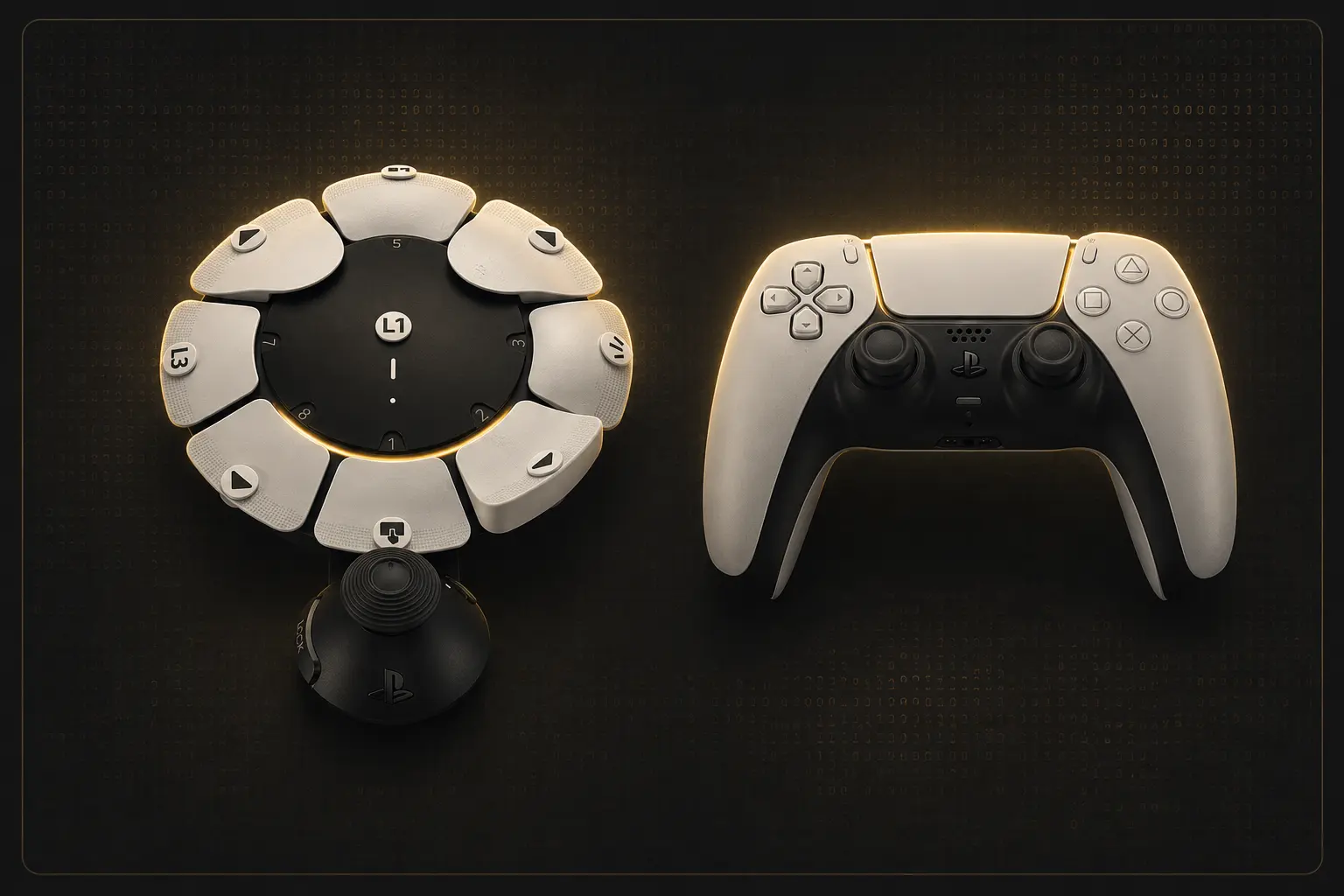
Another strong option is the PlayStation Access Controller for PS5, which reWASD fully supports. Designed specifically for customizable accessibility setups, it offers modular button layouts, expandable inputs, and ergonomic flexibility for players with different mobility needs. In reWASD, the controller is detected as a DualSense Edge device.
Before using the Access Controller with reWASD, it must first be initialized and configured through the PS5 console so that Sony assigns the button mappings internally. Once this initial setup is complete, reWASD can properly recognize and remap all inputs. There are also emerging PC-based initialization tools that may simplify this process in the future.
Specialty controllers - including the Hori Flex, GameSir Kaleid, and similar devices - offer alternative form factors, remappable hardware buttons, and ergonomic designs aimed at non-standard grip styles.
Beyond the controller itself, additional input surfaces like foot pedals, head-tracking devices, and mouth controllers can be layered into a single unified setup. reWASD's Group Devices and Send Input features absorb all of these into one cohesive configuration - the PC sees one clean controller, regardless of how many physical inputs feed into it.
SpecialEffect's DevKit maintains one of the most thorough third-party databases of adaptive hardware options, organized by body part and mobility level - an invaluable reference if you're still deciding on a device.
Any of these can become a capable accessibility gaming controller when paired with the right remapping software. The hardware opens the door; the software determines what's possible inside.
Setting Up reWASD for One-Handed Play: Step-by-Step
This section walks through a complete one-handed configuration from installation to a fully playable setup. Every feature mentioned is available during the free 7-day trial.
Step 1: Install & Connect
Download reWASD from the official website, create a free account, and launch the application. If this is your first time setting up an accessibility config, don't worry - the interface is visual and doesn't require any technical background. Connect your controller - Xbox, PS4/5, or Xbox Adaptive Controller - via USB or Bluetooth. reWASD detects it automatically and displays the full device layout on screen. You're ready to configure.
Step 2: Map Your Base Layer
Your base layer is the foundation: the inputs your available hand can reach comfortably without stretching or repositioning. Take a moment here - there's no universal 'correct' layout, and the right base layer is the one that feels natural to you.
Assign the left stick to movement - this stays in its default position for most players. Then redistribute the highest-priority actions (jump, fire, interact) to whichever face buttons or bumpers fall naturally under your fingers.
From there, open the stick response curve editor. For users with limited grip strength or reduced fine motor control, flatten the curve slightly - this makes small stick movements register less aggressively, giving you more control over directional input without requiring precision pressure.
Step 3: Add a Shift Layer for Extended Controls
A Shift layer is where a one-handed setup gains real depth. Assign any button as your Shift trigger - for example, hold L1 - and every other button takes on a second function while it's held.
In practice: L1 held turns face buttons into camera controls, D-pad into menu navigation, and triggers into ability inputs. Release L1, and you're back to combat mappings instantly. One hand, two complete input sets.
This is one of the most powerful accessibility options in reWASD - it effectively doubles your available inputs without adding a single piece of hardware.
Step 4: Build Combos for Complex Actions
Some in-game actions are inherently multi-step: crouch, then aim, then fire. For a one-handed player, chaining those under pressure isn't always realistic.
reWASD's Combo feature lets you chain any sequence of inputs - with custom timing, pauses, and rumble feedback - onto a single button press. One tap executes the full sequence automatically. This is particularly valuable in shooters, action RPGs, and any game with ability rotations or stealth mechanics.
Step 5: Configure Trigger & Stick Zones
Two adjustments here make a measurable difference for motor accessibility:
-
Deadzone reduction - shrink the inner deadzone so that smaller, less forceful stick movements still register. This directly addresses reduced grip strength or tremor.
-
Trigger activation threshold - lower the point at which a trigger registers as pressed. For users who can engage a trigger but not fully depress it, this adjustment is the difference between a functional and non-functional input.
Both settings are adjusted per-controller, per-profile - changes made for one game don't carry over to another.
Step 6: Use 4 Slots to Switch Between Game Profiles
A one-handed FPS config looks nothing like a one-handed RPG config - and switching between them manually defeats the purpose of having them.
reWASD supports up to 4 configuration slots simultaneously, switchable via a customizable two- or three-button hotkey. Set each slot to a different game profile and transition between them in seconds without leaving the game or opening any software.
Step 7: Expand with a Second Input Surface
If one hand is your only input, a second surface - foot pedal, phone, or adaptive switch - changes what's possible entirely. The reWASD Mobile app (iOS and Android) turns your phone or tablet into a gamepad, control pad, or touchpad - connectable over local Wi-Fi. Mounted within reach, it becomes a second controller surface operated by a different body part.
Foot pedals, head-tracking devices, and other assistive hardware connect through Group Devices, which merges all physical inputs into a single unified virtual controller. The game sees one device; you're using as many inputs as your setup needs.
Real-World Accessibility Profiles: Practical Examples
Abstract features become meaningful when applied to real situations. Here are three archetype-based scenarios showing how different players build functional setups with reWASD.
Profile 1: The FPS Player - Right Arm RSI
A competitive FPS player develops repetitive strain injury in their right arm and can no longer maintain a two-handed grip through long sessions.
Setup: Standard Xbox controller held in the left hand, rested on a tabletop stand. Movement and primary fire on the base layer. A Shift layer reassigns face buttons to camera control - eliminating sustained right-stick use. Trigger activation threshold lowered so light contact registers as a full press.
Result: Full FPS functionality; right hand involvement reduced to occasional light assist.
Profile 2: The RPG Explorer - Limb Difference (Left Hand Only)
A player with a congenital limb difference has full use of their left hand only. RPGs demand inventory management, ability rotations, dialogue navigation, and combat - often simultaneously.
Setup: PlayStation Access Controller as the base device, with a USB foot pedal handling the highest-frequency secondary inputs. reWASD's Group Devices merges both into one virtual controller. Three Shift layers cover combat, exploration, and menu modes respectively.
In reWASD, the Access Controller is recognized as a DualSense Edge device. Before using it on PC, the controller should first be initialized and configured on a PS5 console so Sony can assign its internal button mappings. Once initialized, reWASD can fully recognize and remap all inputs for a highly customizable one-handed setup.
Result: A complete RPG control surface built entirely around left-hand and foot input.
Profile 3: The Casual Gamer - Stroke Recovery
A player returning to gaming during stroke recovery has limited coordination on one side and finds standard controllers disorienting to relearn.
Setup: Phone mounted within reach, running the reWASD Mobile app as a touchpad. Custom Combos compress multi-step actions into single taps, reducing cognitive and physical load. Response curves softened across all sticks to forgive imprecise movement.
Result: A re-entry into gaming that adapts to recovery progress - not the other way around.
Community & Further Resources
Building an accessible setup is rarely a solo process - and you don't have to figure it out alone.
The reWASD community forum is an active space where players share configs, troubleshoot setups, and post ready-to-use profiles. If you've built an accessibility layout that works, sharing it there directly helps other players facing the same barriers.
For personalized hardware advice, AbleGamers' Player Support helpline connects players with trained specialists who help match assistive devices to individual needs - free of charge.
The Game Accessibility Guidelines checklist is worth bookmarking as a reference, particularly if you're helping configure a setup for someone else.
Your config might be exactly what another player needs. Share it.
Everything above - the community configs, the hardware databases, the specialist helplines - works best when the software layer is flexible enough to bring it all together.
Accessible gaming requires two things to go right: hardware that fits how you interact with the world, and software flexible enough to meet you the rest of the way. The hardware landscape has improved - but software is where the real customization lives, and that's the gap reWASD was built to close.
Every feature in this guide - Shift layers, Combos, Group Devices, stick zone tuning, Mobile Controller support - is available from day one of the free trial. No feature gates, no partial access. Seven days to build, test, and refine a setup that actually works for you.
Download reWASD and start your free trial today. The full range of accessibility options is ready - and so is the game you've been wanting to play.
Gaming is for everyone. Your controller should be too.
FAQ
Can I use reWASD with any controller for one-handed gaming?
Yes. reWASD supports Xbox, PlayStation (DS4/DS5), and Access Controller PS5 out of the box. Third-party and specialty controllers are also recognized in most cases. Connect via USB or Bluetooth - the app detects the device automatically.
Do I need to buy a special adaptive gaming controller to use one-handed setups?
No. A standard Xbox or PlayStation controller works fine as a starting point. An adaptive gaming controller like the XAC adds expandability, but the remapping approach described in this guide works with whatever you already own.
What is a Shift layer and why does it matter for one-handed players?
A Shift layer assigns a second function to every button while a designated key is held. For one-handed players, it effectively doubles available inputs without any additional hardware - one of the most practical accessibility options in reWASD.
Can reWASD merge a foot pedal and a controller into one input?
Yes. The Group Devices feature combines multiple physical inputs - foot pedals, adaptive switches, mobile devices - into a single virtual controller. The game sees one device regardless of how many inputs feed into it.
Is there a learning curve to setting up a one-handed config in reWASD?
The base layer and Shift layer setup is straightforward for most users. The reWASD interface is visual - you click a button on the on-screen controller and assign its function. The community forum also has ready-made accessibility configs you can import and adjust.
Can I save different layouts for different games?
Yes. reWASD supports up to 4 configuration slots per device, switchable via hotkey without leaving the game. Each slot holds a completely independent mapping profile.
Is reWASD free?
reWASD offers a full-featured 7-day trial at no cost, available on up to 2 PCs simultaneously. After the trial, a one-time Lifetime Access purchase starts from €34.99.
Download
You may also like
How to Use Gyro Controls on PC
.png)